
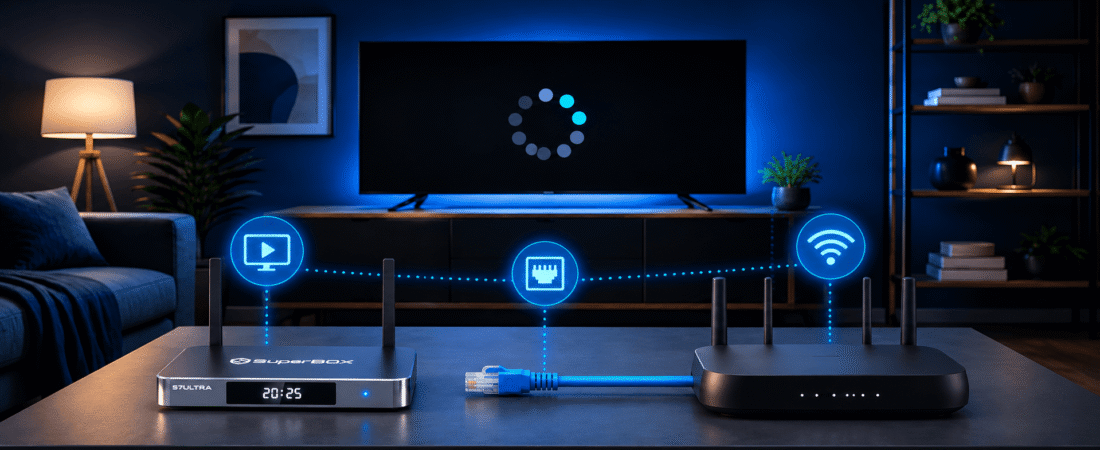
This guide covers 11 practical fixes for SuperBox buffering and common “SuperBox not working” problems. If you are still comparing devices, visit the SuperBox home page to review the current product range and support information.
Contents
What to Check First When SuperBox Is Buffering or Not Working
- Check whether the TV shows the SuperBox menu or only a blank screen.
- Try another channel, video, or supported app to isolate the problem.
- Restart the router first, then restart the SuperBox after the internet reconnects.
- Use Ethernet to test whether Wi-Fi interference is causing buffering.
- Close unused apps, clear the affected app cache, and improve ventilation.
- Avoid factory resets and unofficial APK files until support recommends them.
Identify What Is Not Working Before Troubleshooting
The phrase “SuperBox not working” can describe several different problems. A TV showing “No Signal” is usually a display or HDMI issue, while a visible menu with a spinning loading icon is more likely related to the network, app, or playback service.
Use these quick checks before applying the fixes below:
- Can you see the SuperBox home screen?
- Does the TV show “No Signal,” or does the video simply keep loading?
- Do all apps buffer, or only one channel or title?
- Does the remote respond to the Home and Back buttons?
- Can other devices in the same room access the internet normally?
These details help you avoid changing the wrong setting. For example, replacing the HDMI cable will not fix a single video source that is buffering, while restarting an app will not fix a TV connected to the wrong HDMI input.
Try These 11 SuperBox Buffering and Not Working Fixes
1. Check the power, HDMI cable, and TV input
If the SuperBox does not appear on the TV, check the power adapter and confirm that the device indicator is on. Then select the HDMI input that matches the port used by the box.
Reconnect both ends of the HDMI cable and try another HDMI port if one is available. This is the correct first step when the TV says “No Signal” or the screen remains black before the SuperBox menu appears.
2. Test another channel or video
If the SuperBox menu is visible but a video will not start, try several different channels or titles. If only one source buffers, the issue may be limited to that content or service.
This test also helps distinguish a SuperBox buffering problem from a wider hardware or internet problem.
3. Restart the router, modem, and SuperBox in order
Turn off the SuperBox and unplug the router. If your home uses a separate modem, unplug it as well. Wait until the modem and router have fully reconnected before powering on the SuperBox.
Starting the box before the network is ready can create another failed connection. A complete restart refreshes the network session and closes background processes that may have become unstable.
4. Test your internet connection near the TV
Run a connection test in the same room as the SuperBox rather than beside the router. The connection available behind a television may be weaker because of walls, cabinets, or interference.
Pay attention to stability, not only the highest download speed. Frequent signal drops, inconsistent latency, and packet loss can cause buffering even when the internet plan looks fast on paper.
5. Move the SuperBox closer to the router
Move the box or router to create a clearer wireless path. Large appliances, thick walls, metal furniture, and other wireless devices can reduce signal quality.
Do not hide the SuperBox behind the television or inside a closed cabinet. The location can affect both Wi-Fi reception and device temperature.
6. Switch from Wi-Fi to Ethernet
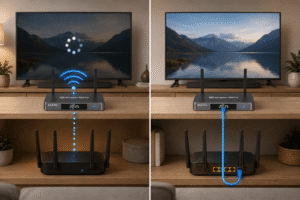
Ethernet is one of the most useful tests for SuperBox WiFi buffering. Connect an Ethernet cable directly from the router to the box, then test the app and content again.
If playback improves over Ethernet, the likely problem is Wi-Fi distance, interference, or signal instability. The current SuperBox S7 models support wired Gigabit Ethernet, which can be useful when the router is close to the TV.
If the SuperBox says it is connected, but apps will not load, remove the saved Wi-Fi network and reconnect. Carefully enter the password again, including capital letters and special characters.
This can resolve an outdated network profile or a connection that appears active but is no longer communicating correctly with the router.
8. Reduce other network activity
Pause large downloads, cloud backups, video calls, and high-resolution streaming on other devices while testing the SuperBox.
If buffering stops when other devices are disconnected, the issue may be network congestion. This is especially common when several people are streaming or gaming at the same time.
9. Close unused apps and restart the device
Close apps running in the background, then restart the SuperBox. If the menus and playback feel slow, background processes may be using device resources.
A normal restart does not erase your settings. It simply gives the device and its apps a clean session.
10. Clear the affected app cache
If only one app is buffering or freezing, open Android settings, find the affected app, and clear its cache. Temporary cache files can occasionally become corrupted.
Clear the cache before clearing app data. Do not uninstall important system apps, delete pre-installed services, or perform a factory reset unless support gives you model-specific instructions.
11. Improve ventilation and check the playback source
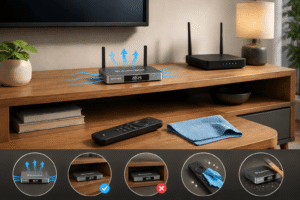
Place the SuperBox on an open, stable surface with space around the device. Avoid stacking it on another hot electronic device or placing it in an enclosed cabinet.
Heat can contribute to slow menus, app crashes, and playback instability during long viewing sessions. If buffering affects only one service while other content works normally, the source may also be experiencing an interruption or heavy traffic.
Only use compatible software and trusted update instructions. Unofficial APK files that promise to fix SuperBox buffering may create security or compatibility problems.
Match the SuperBox Symptom to the Likely Cause
| Symptom | Likely area | Best first action |
|---|---|---|
| TV shows “No Signal” | HDMI, power or TV input | Check the input, cable, and power adapter |
| Menu works but every app buffers | Router, Wi-Fi or internet | Restart the network and test Ethernet |
| Only one channel buffers | Specific source or service | Try another channel or supported app |
| Wi-Fi shows connected, but apps fail | Saved network profile or router | Forget the network and reconnect |
| Remote is not responding | Batteries, pairing, or obstruction | Replace batteries and restart the box |
| Menus and playback are both slow | Background apps or heat | Close apps, restart, and improve ventilation |
For detailed HDMI, Wi-Fi, Ethernet, and remote pairing instructions, follow the SuperBox first-time setup guide.
If you are considering a newer device after testing your network and software, compare the storage and connectivity options in the SuperBox S7 Ultra, S7 Max and S7 Pro comparison.
Know When to Contact SuperBox Support
Contact support when the box remains unusable after you have checked the HDMI connection, restarted the router and device, tested another app, tried Ethernet, and confirmed proper ventilation.
Prepare your exact model, order number, checkout email, a description of the problem, and the troubleshooting steps already completed. A photo, screenshot, or short video can make the issue easier to diagnose.
If the device is older or has a persistent hardware problem, you can review the current SuperBox S7 product page for updated hardware, availability, and retailer warranty information.
Never share your email password, payment password, or one-time verification code with anyone claiming to provide SuperBox technical support.
For current setup, order, and troubleshooting assistance, visit the SuperBox official store and use the retailer’s published support channels.
FAQ
Why does my SuperBox keep buffering?
The most common causes are unstable Wi-Fi, router congestion, background apps, heat, corrupted app cache, or a problem with the specific playback source.
Why is my SuperBox not working at all?
Check the power adapter, HDMI cable, TV input, internet connection, and remote batteries. If the box turns on but apps or videos fail, restart the router and SuperBox before contacting support.
Does Ethernet fix SuperBox buffering?
Ethernet can help when buffering is caused by weak Wi-Fi, interference, or signal drops. It is also a useful test for separating wireless problems from device or source-service problems.
Why does my SuperBox buffer on only one channel?
If other channels and apps work normally, the issue may be limited to that particular source or service. Try different content before changing device settings.
What should I do if the SuperBox screen is black?
If the TV shows no menu, check the HDMI input, cable, power connection, and another HDMI port. If the menu is visible but the video window is black, test the network and the affected app.
Can overheating cause SuperBox freezing?
Heat can contribute to slow menus, crashes, and playback instability. Keep the device in an open, ventilated area and avoid placing it on top of other hot electronics.
Should I factory reset my SuperBox?
A factory reset should not be the first step. Test the HDMI connection, network, apps, and ventilation first, then contact support before resetting the device.
Still Having SuperBox Buffering or Not Working Problems?
Contact the support team with your model, order details, and the troubleshooting steps you have already completed.