
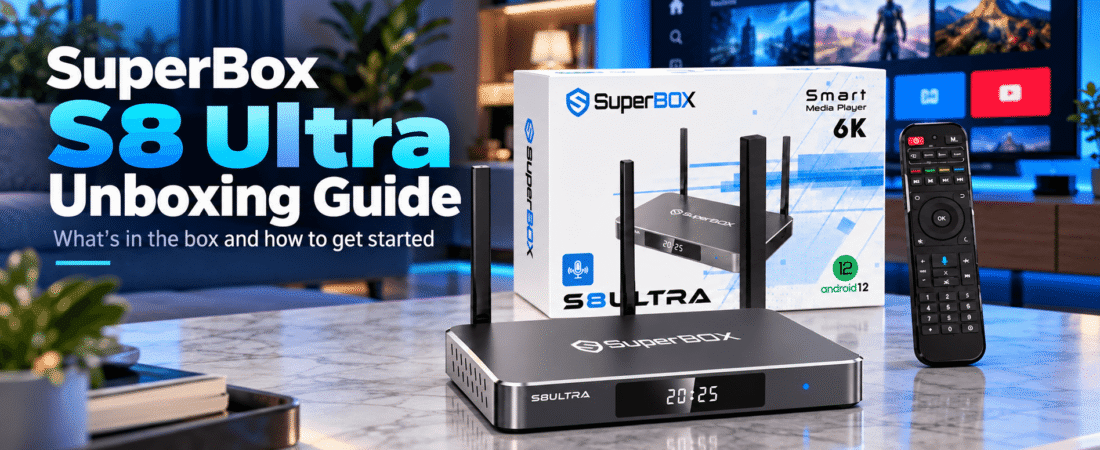
Unboxing the SuperBox S8 Ultra feels a little different from opening a basic streaming box. The SuperBox S8 Ultra sits at the top of the current SuperBox S8 lineup, with 128GB of internal storage, a backlit voice remote, WiFi 6, Gigabit Ethernet, full Multi-View support, built-in recording, and a Type-C power connection.
If you are opening a SuperBox for the first time, however, the most important thing is not to rush straight into downloading apps. A better approach is to inspect the package, identify the SuperBox S8 Ultra-specific hardware, connect only the essentials, complete the first startup, test the backlit remote, and make sure the system is stable before customizing everything.
You can view the complete SuperBox S8 lineup on the SuperBox official store or check the latest specifications and availability directly on the SuperBox S8 Ultra product page.
First Impression: What Makes the SuperBox S8 Ultra Feel Different?
The first thing that separates the SuperBox S8 Ultra from the lower SuperBox S8 models is that it is designed as the flagship configuration.
Its 128GB eMMC storage is double the 64GB found in the SuperBox S8 Max and SuperBox S8 Plus, while the included backlit voice remote is another model-specific upgrade.
The SuperBox S8 Ultra also supports the broader Full Multi-View configuration available on the higher SuperBox S8 models, alongside Picture-in-Picture, built-in recording, Playback, 7-Day Time Shift, WiFi 6, Gigabit Ethernet, Bluetooth 5.2, and high-resolution video decoding.
If you want a broader overview before diving into the setup, our SuperBox S8 Review explains how the current SuperBox S8 models differ in storage, features, remote design, and positioning.
What Comes in the SuperBox S8 Ultra Box?
Before connecting anything, unpack the retail box completely and place everything on a clean surface.
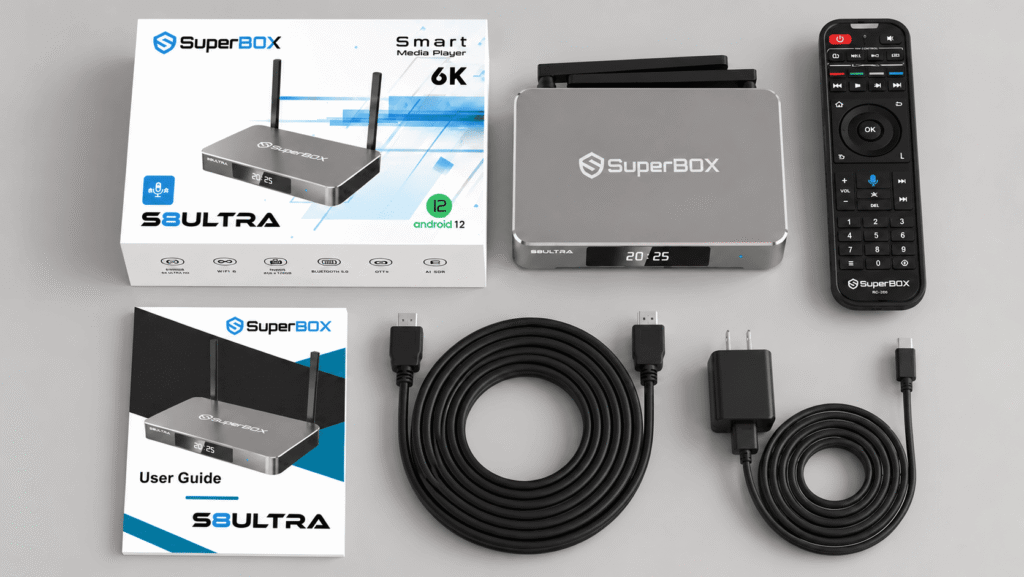
A typical SuperBox S8 Ultra package includes:
- SuperBox S8 Ultra TV Box
- Backlit voice-command remote
- HDMI cable
- Type-C power cable/power supply
- User guide
The SuperBox S8 Ultra normally uses a darker gray or metallic finish instead of the bright blue appearance found on some other SuperBox S8 models, so the device should be easy to distinguish visually.
Check the device body, two antennas, remote, HDMI cable, power accessories, and retail packaging for any obvious shipping damage before continuing.
Unboxing tip: Keep the retail box, user guide, order confirmation, and original accessories until you have fully tested the SuperBox S8 Ultra. They may be useful later for support, warranty service, or moving the device.
Before Setup: Confirm You Really Have the SuperBox S8 Ultra
The SuperBox S8 family includes several boxes with similar dimensions and layouts, so confirm the model name before following an online setup guide.
The SuperBox S8 Ultra should be identified by its Ultra model marking and its flagship hardware configuration.
Key details include:
- 4GB DDR memory
- 128GB eMMC storage
- Backlit voice remote
- USB-C + USB 3.0
- Type-C power connection
- WiFi 6
- Gigabit Ethernet
This is particularly important if you previously owned another SuperBox model. Do not assume that every cable, remote, or setup photo from another SuperBox S8 model should be copied exactly.
Step 1: Choose a Good Location for the SuperBox S8 Ultra
Do not hide the box behind your television immediately.
During the first setup, place the SuperBox S8 Ultra on an open TV console or shelf where you can easily reach the HDMI, LAN, USB, Type-C, and other ports.
Keep the two antennas unobstructed and avoid placing heavy electronics directly on top of the device.
Once everything has been tested, you can organize the cables more neatly.
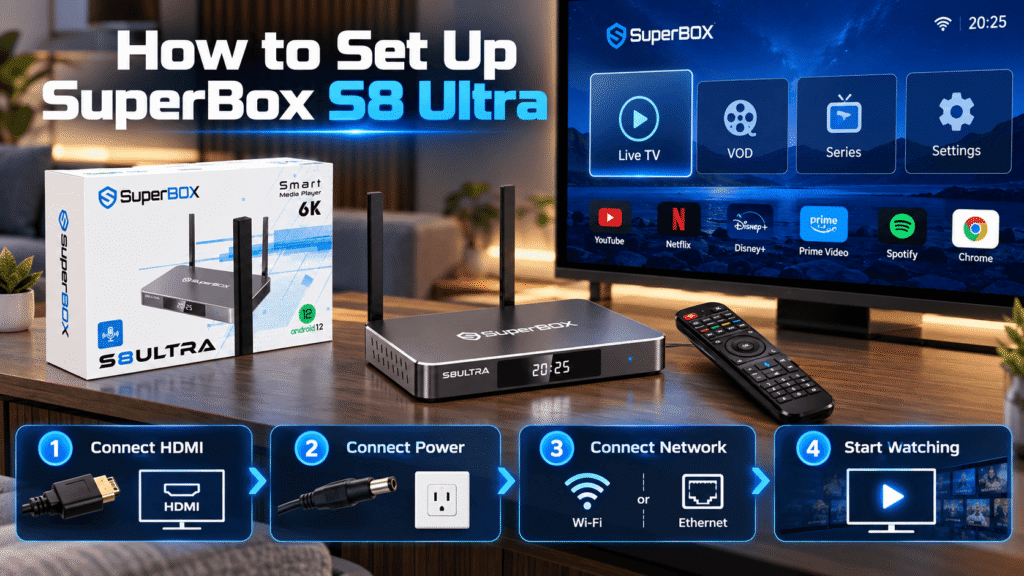
Step 2: Connect HDMI and Type-C Power
Connect one end of the supplied HDMI cable to the SuperBox S8 Ultra and the other end to an available HDMI input on your TV.
Remember the HDMI number you used. If the cable is connected to HDMI 2, for example, your television must also be switched to HDMI 2.
Next, connect the supplied Type-C power connection to the SuperBox S8 Ultra and a power source.
Turn on the television and select the correct HDMI input. After startup, you should see the SuperBox interface or initial setup screen.
If the TV Shows No Signal
Check the simple things first:
- Confirm the SuperBox S8 Ultra is receiving power.
- Check both ends of the HDMI cable.
- Make sure the TV is displaying the correct HDMI input.
- Try another HDMI port if necessary.
Avoid changing advanced display settings until you have confirmed the physical connection is correct.
Step 3: Complete the First Boot
Follow the instructions displayed on your television.
Depending on the current software version, the first-start process may include language, network, display, time zone, remote, or other basic settings.
Software screens can change over time, so the instructions shown on your own SuperBox S8 Ultra should take priority over screenshots from an older tutorial.
If the interface appears cropped, check the screen-size or display-area controls on both the SuperBox S8 Ultra and your television.
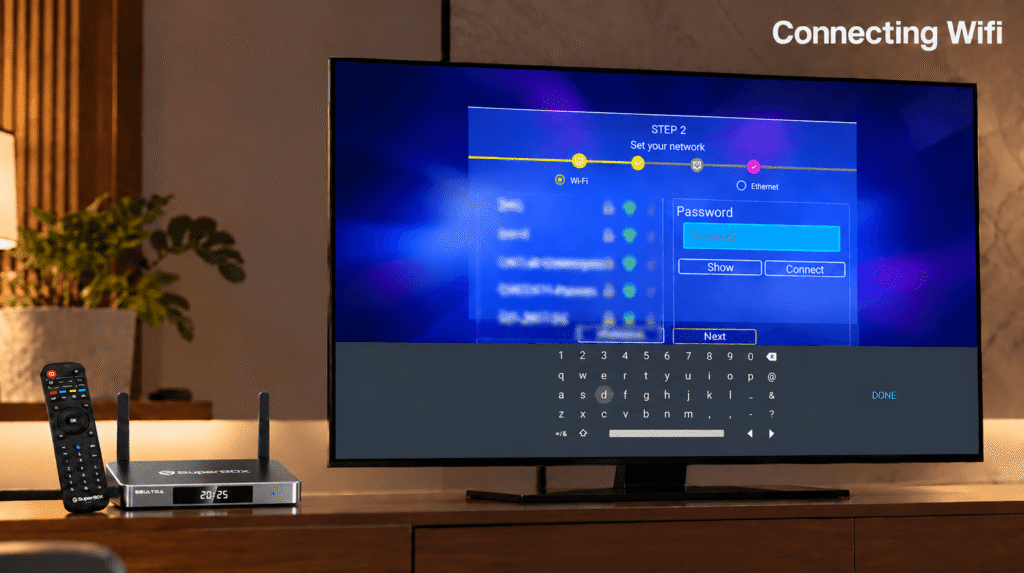
Step 4: Decide Between WiFi 6 and Gigabit Ethernet
The SuperBox S8 Ultra gives you both wireless and wired network options.
Using WiFi 6
WiFi is convenient when the router is located away from the television.
Choose your home network from the SuperBox S8 Ultra network menu, enter the password carefully, and wait until the system confirms the connection.
Using Gigabit Ethernet
If your router is close to the TV, connecting an Ethernet cable to the LAN port can be a useful alternative.
A wired connection removes wireless distance and interference from the link between the router and the box.
Remember that WiFi 6 support does not guarantee a specific streaming speed. Your broadband plan, router quality, network traffic, server conditions, and source application all affect real-world performance.
Step 5: Test the Backlit Voice Remote
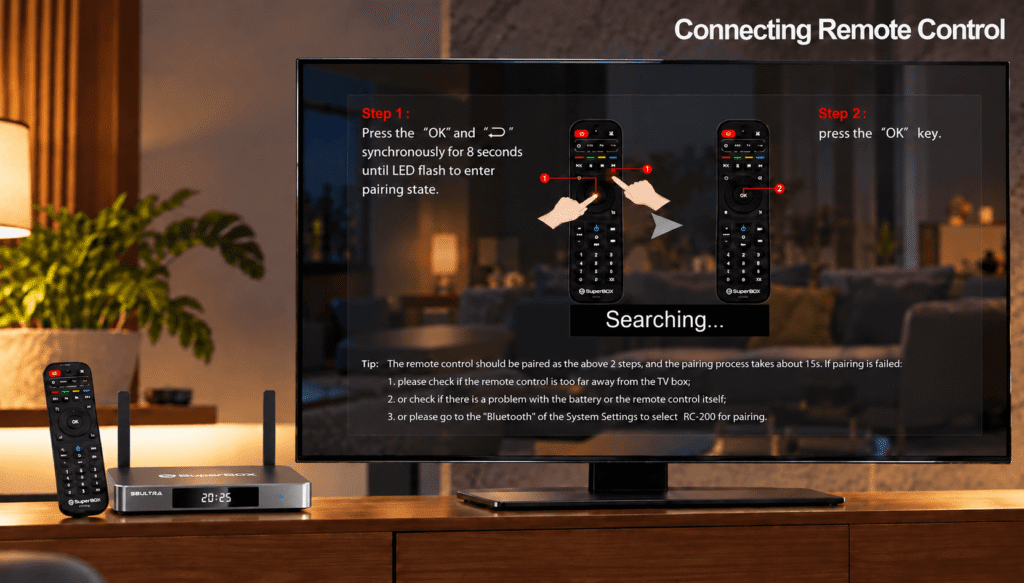
The backlit remote is one of the most visible differences between the SuperBox S8 Ultra and the other current SuperBox S8 models.
During setup, follow the on-screen pairing instructions if Bluetooth pairing is requested.
After pairing, test:
- Directional navigation
- OK / Select
- Back / Return
- Home
- Volume controls where supported
- Voice input
- Backlighting in a darker room
The backlighting may sound like a small upgrade, but it can be genuinely useful if the SuperBox S8 Ultra is used in a home theater, bedroom, or dim living room.
Why the Backlit Remote Matters More Than It Sounds
Many buyers focus on storage first, but the remote is one of the few parts of a TV box that you physically use every day.
On the SuperBox S8 Ultra, illuminated buttons make it easier to identify controls without turning on additional room lighting.
This is also one of the clearest everyday differences between the SuperBox S8 Ultra and the SuperBox S8 Max.
If you are deciding whether that upgrade matters to you, see our SuperBox S8 Ultra vs SuperBox S8 Max comparison.
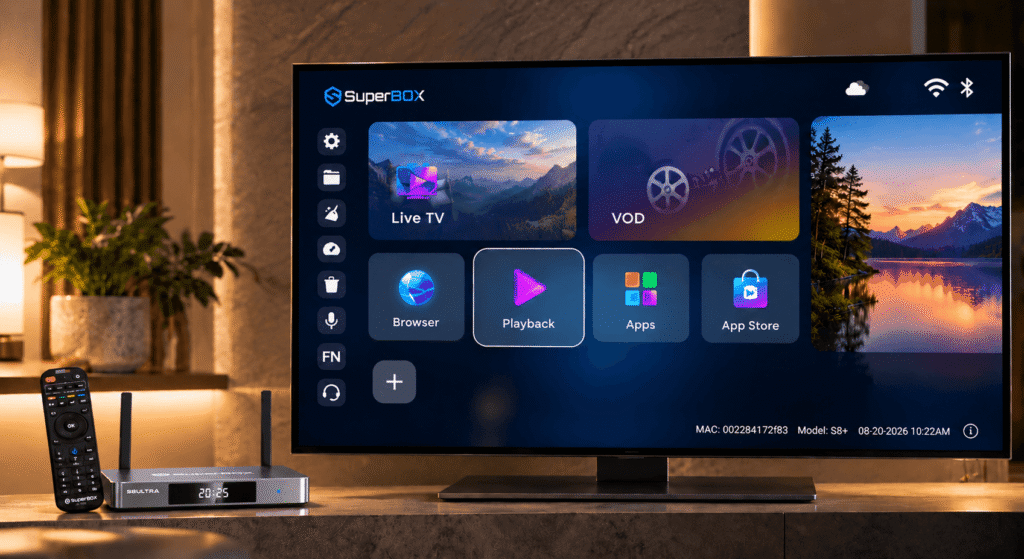
Step 6: Explore the Interface Before Installing Everything
Once the home screen appears, resist the temptation to immediately change every setting.
Spend a few minutes locating:
- Settings
- Network controls
- Installed apps
- App management
- Storage information
- Display settings
- Audio settings
- Recording and Playback tools
The SuperBox S8 generation uses a redesigned interface intended to make commonly used features easier to find.
Knowing the interface before adding more software makes future troubleshooting much easier.
Step 7: Install Apps Carefully
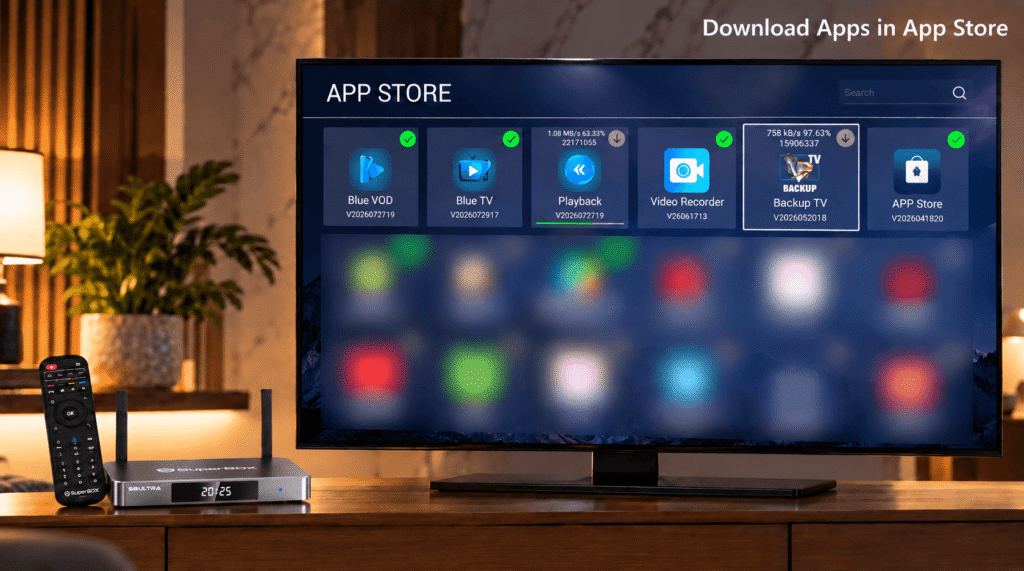
The SuperBox S8 Ultra has 128GB of storage, but that does not mean you should install every available application on the first day.
Start with the apps you actually plan to use. Install one, open it, confirm that it works, and then move to the next.
Because the SuperBox S8 Ultra is Android-based, it is also sensible to be selective about third-party applications and unknown installation sources.
128GB Storage: What Should You Do With It?
The biggest hardware reason to choose the SuperBox S8 Ultra is its 128GB internal storage.
That does not make the device faster simply because more storage exists, but it gives you considerably more room for compatible apps, local data, recordings, and everyday use before storage management becomes a concern.
For users who plan to make heavier use of built-in recording, the extra capacity can be especially useful.
You should still check storage occasionally. Recordings and app data can accumulate gradually, and no internal drive is unlimited.
Step 8: Test Built-In Recording Early
Built-in recording is one of the major SuperBox S8 features, so it is worth testing after the basic setup is stable.
Use supported content and follow the recording controls available in the compatible application.
After creating a short test recording:
- Confirm that the recording actually saved.
- Play it back.
- Check audio and video.
- Confirm where the saved file or recording appears.
Doing a short test is better than discovering later that you misunderstood the recording workflow during an important program.
Step 9: Try Picture-in-Picture and Full Multi-View
Another feature that helps distinguish the SuperBox S8 Ultra is broader Multi-View capability.
Depending on the supported content and current software environment, Picture-in-Picture can keep a smaller program visible while you continue using the main screen, while Multi-View can provide multiple viewing areas at the same time.
This can be especially useful for sports-heavy viewing or households that like keeping track of more than one program.
The SuperBox S8 Ultra and SuperBox S8 Max both sit above the lower SuperBox S8 configurations in this area, so Multi-View alone may not be enough to decide between them. Storage and the backlit remote are also important differences.
Step 10: Run a First-Day Stability Test
Before rearranging the interface or connecting extra accessories, spend ten minutes testing the basics.
- Check that picture and sound are stable.
- Confirm WiFi or Ethernet remains connected.
- Test the backlit remote.
- Open at least one app.
- Test one short recording if supported.
- Return to the home screen.
- Restart the SuperBox S8 Ultra once.
After restart, confirm that the network reconnects and that the remote still works. This gives you a clean baseline before you start deeper customization.
SuperBox S8 Ultra Ports: What to Check During Unboxing
The SuperBox S8 Ultra uses a practical connection layout that includes USB-C and USB 3.0, along with HDMI, LAN, and other media connections.
For most first-time owners, you do not need to fill every port immediately. Use HDMI, power, and either WiFi or Ethernet first. Add external storage or other compatible accessories only after the box is working properly.
SuperBox S8 Ultra vs SuperBox S8 Pro: The Difference Is Bigger Than Storage
The SuperBox S8 Pro is positioned as the essential SuperBox S8 model, while the SuperBox S8 Ultra is the flagship configuration.
The jump from 32GB on the SuperBox S8 Pro to 128GB on the SuperBox S8 Ultra is significant, but the SuperBox S8 Ultra also adds higher-tier model features such as the backlit remote and Full Multi-View support.
You can see the full difference in our SuperBox S8 Ultra vs SuperBox S8 Pro comparison.
SuperBox S8 Plus vs SuperBox S8 Ultra: Who Really Needs the Flagship?
The SuperBox S8 Plus already provides 64GB storage and many of the core SuperBox S8 features, so not every household automatically needs a SuperBox S8 Ultra.
The SuperBox S8 Ultra is more relevant if 128GB storage, Full Multi-View, and the backlit remote are priorities.
For a deeper feature-by-feature breakdown, read our SuperBox S8 Plus vs SuperBox S8 Ultra comparison.

Common SuperBox S8 Ultra Unboxing Mistakes
1. Throwing Away the Packaging Immediately
Keep the box and order information until the device has been completely tested.
2. Mixing Power Accessories Between Models
Use the supplied Type-C power equipment for the SuperBox S8 Ultra instead of assuming another TV box adapter is compatible.
3. Ignoring the Model-Specific Remote
The backlit voice remote is one of the SuperBox S8 Ultra’s defining features. Make sure the correct remote is included and working.
4. Installing Too Many Apps on Day One
128GB provides room, but installing everything immediately makes troubleshooting harder.
5. Assuming 6K Decoding Means Every Video Becomes 6K
The SuperBox S8 Ultra supports high-resolution decoding, but actual picture quality still depends on the source, app, HDMI path, and television.
6. Changing Too Many Settings Before Testing the Default Setup
Start from the default configuration, confirm everything works, and then customize one area at a time.
Quick SuperBox S8 Ultra First-Day Troubleshooting
| Problem | Check First |
|---|---|
| No Signal | Check Type-C power, HDMI connection, and the TV’s selected input. |
| Remote not responding | Check batteries, pairing status, and distance from the box. |
| Backlight not working | Confirm the remote is the correct Ultra backlit model and test after pairing. |
| WiFi disconnects | Check router distance, signal strength, and network congestion. |
| Ethernet not detected | Reconnect both ends of the LAN cable and test another router port if available. |
| Picture is cropped | Check the Ultra display area and the television’s Zoom or Overscan settings. |
| One app does not work | Test another app to determine whether the issue is application-specific. |
| Storage usage seems high | Review recordings, downloads, installed apps, and cached data. |
What If You Have Not Bought the SuperBox S8 Ultra Yet?
If you are reading an unboxing guide before ordering, use the opportunity to decide whether the flagship features actually match the way you watch TV.
Our Is SuperBox S8 Worth Buying in the USA? guide covers the wider SuperBox S8 ownership experience.
If your main concern is finding a reliable seller, shipping terms, or checking a retailer before payment, read our Where to Buy SuperBox S8 guide before ordering.
Keep Your Warranty Information After Unboxing
Do not treat the order email and warranty details as disposable once the box is working. Save your order number, purchase date, retailer information, and a copy of the applicable warranty terms.
You can review our SuperBox S8 Warranty & Support Policy for store-specific information.
Final SuperBox S8 Ultra Unboxing Checklist
- Confirm the device is the SuperBox S8 Ultra.
- Check the metallic SuperBox S8 Ultra TV box for shipping damage.
- Verify that the backlit voice remote is included.
- Check the HDMI cable and Type-C power accessories.
- Confirm the two antennas are intact.
- Connect HDMI and Type-C power.
- Select the correct HDMI input.
- Connect through WiFi 6 or Ethernet.
- Pair and test the backlit remote.
- Check display size and sound.
- Install only your priority apps first.
- Test recording and Multi-View where supported.
- Restart the box once.
- Keep the packaging and purchase information.
Final Thoughts
The SuperBox S8 Ultra unboxing experience is most useful when you take time to notice what actually separates the flagship model from the rest of the lineup.
Its 128GB storage, Full Multi-View support, built-in recording, WiFi 6, Gigabit Ethernet, Type-C power, and backlit voice remote give it a more premium hardware and everyday-use package than the lower SuperBox S8 models.
But the best first-day experience still comes from keeping things simple: inspect the package, connect HDMI and power, establish a stable network, pair the remote, learn the interface, and test the important features before filling the device with apps and settings.
You can explore all current models on the SuperBox official homepage or view the latest SuperBox S8 Ultra details directly on the SuperBox S8 Ultra product page.
Frequently Asked Questions
What comes in the SuperBox S8 Ultra box?
The typical package includes the SuperBox S8 Ultra, backlit voice remote, HDMI cable, power cable or power supply, and user guide.
How much storage does the SuperBox S8 Ultra have?
The SuperBox S8 Ultra includes 4GB of memory and 128GB of internal eMMC storage.
Does the SuperBox S8 Ultra include a backlit remote?
Yes. The backlit voice remote is one of the main model-specific features of the SuperBox S8 Ultra.
Does the SuperBox S8 Ultra use Type-C power?
Yes. The SuperBox S8 Ultra configuration uses a Type-C power connection.
Does the SuperBox S8 Ultra have USB-C?
Yes. The current configuration includes USB-C and USB 3.0 connectivity.
Can I connect the SuperBox S8 Ultra through Ethernet?
Yes. The SuperBox S8 Ultra supports Gigabit Ethernet as well as dual-band WiFi 6.
What is the difference between SuperBox S8 Ultra and SuperBox S8 Max?
Both models support higher-tier SuperBox S8 features such as Full Multi-View, but the SuperBox S8 Ultra increases storage from 64GB to 128GB and includes a backlit voice remote.
Should I install every app immediately after unboxing?
No. It is easier to test the base system first and then install the apps you actually plan to use, one at a time.