

SuperBox S8 App Store missing? First check whether the store itself is absent or only an app shortcut has disappeared from the home screen. Those are different problems. Confirm that the box is online, look in its Apps area, and compare what you see with the current on-device interface. Avoid random “App Store APK” downloads: an unknown installer can create a bigger problem than a missing icon.
Owners exploring the SuperBox TV box range sometimes expect every entertainment app to appear on the first screen. The S8 interface separates installed apps, the built-in app catalog, and home-screen shortcuts. If you are still choosing a model, the current SuperBox S8 selection shows the available hardware; buying a different box is not the first response to a missing shortcut.
What exactly is missing?
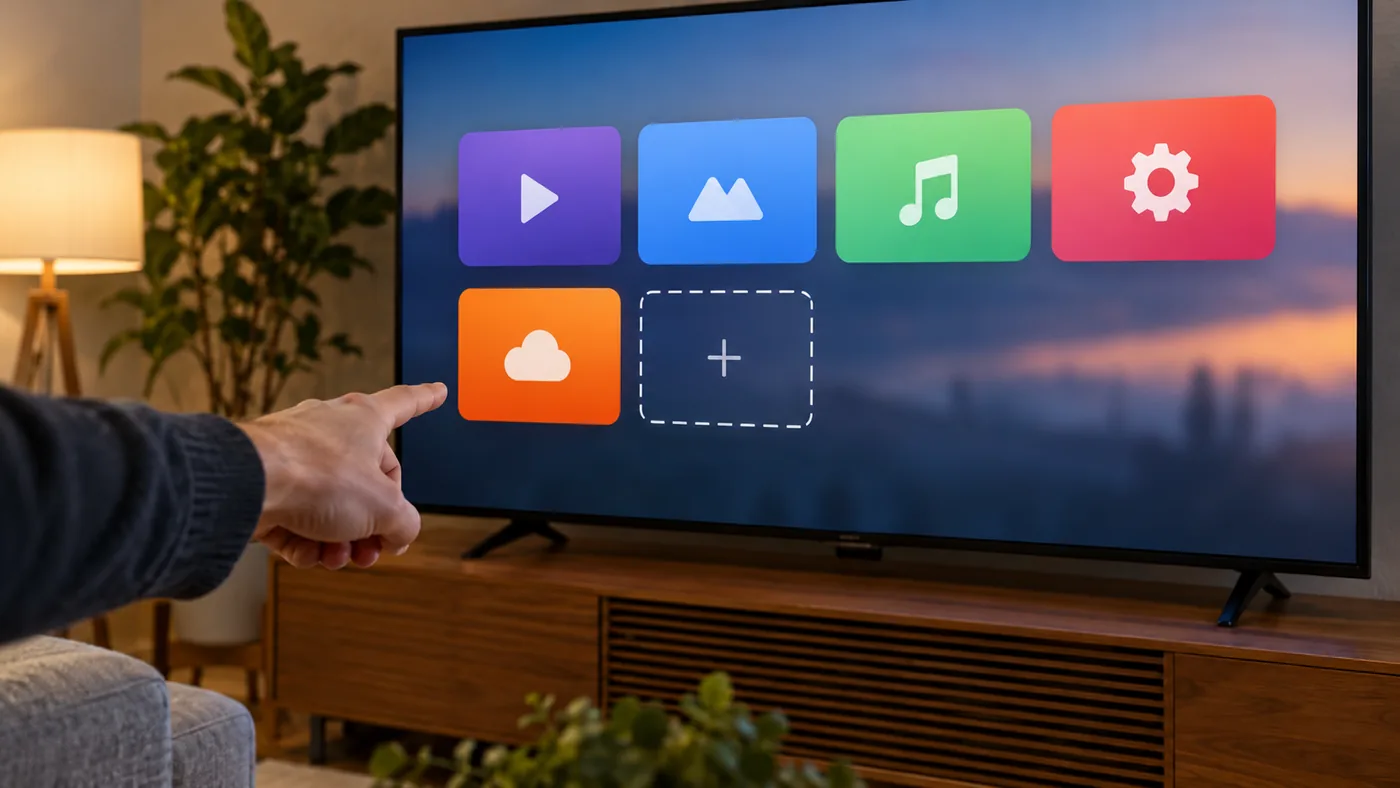
Before changing anything, identify the screen you are looking at. Is the APP Store icon missing from the Apps area? Does the store open, but Blue TV or Blue VOD fail to appear inside it? Or is an app installed but absent from the row of shortcuts on the home screen? A search for “SuperBox app store missing” can describe all three situations, yet each calls for a different next step.
The site’s existing SuperBox S8 app installation walkthrough explains a key distinction: installing an app and adding it to the home screen are separate actions in the demonstrated interface. If the application opens from the Apps area, the store may be working normally even though its shortcut is not where you expected.
Start with the Apps area, not an internet download
On the S8 interface described in our setup guide, the Apps area leads to installed software and the built-in APP Store. The Google Play Store is a separate marketplace. Their icons and labels can change with software revisions, so follow what is visible on your particular device instead of relying on an old screenshot or a generic Android TV tutorial.
If an app is installed but not on the home row, look for the interface’s add-shortcut control after locating the app in Apps. If the built-in APP Store opens but the desired app is not listed, do not assume that a copied APK from another model will solve it. Catalogs can differ by software version, region, and current service availability. Our SuperBox S8 Blue TV guide explains why availability and advanced viewing functions should be checked against the model and current software.
The SuperBox S8 Max product listing confirms Android 12, Wi-Fi 6, Gigabit Ethernet, and 64GB eMMC storage. Those are useful device facts, but none guarantees that a particular app icon will always occupy the same place on the home screen.
Check the internet connection before judging the catalog
A store interface may open without loading its current listings when the connection is weak or unavailable. Check the network status on the box and test whether another internet-dependent app works. If other household devices are also offline, investigate the router or internet service first. The site’s support guidance recommends restarting the box and router, confirming the Wi-Fi password, and trying Ethernet where practical.
If you are deciding between a cable and wireless connection, the SuperBox S8 Wi-Fi versus Ethernet guide explains how room layout and interference affect the choice. Ethernet can remove one wireless variable from this diagnosis; it cannot restore an app that is no longer offered in the current catalog.

Could storage be the reason an app will not install?
Storage matters when downloads or updates cannot finish, but it is not a reliable explanation for a vanished APP Store icon. Check free space if the store loads and installation repeatedly fails. Do not start deleting apps without knowing which ones you use or whether they hold local preferences. The SuperBox S8 storage guide separates the 32GB, 64GB, and 128GB model choices from the space actually available after the system and existing files are installed.
Likewise, slow loading is not the same as an absent app. If the device itself freezes or multiple apps fail, use the broader SuperBox not working checklist to isolate power, network, and application symptoms before changing advanced settings.
Why a random “SuperBox App Store APK” is a poor shortcut
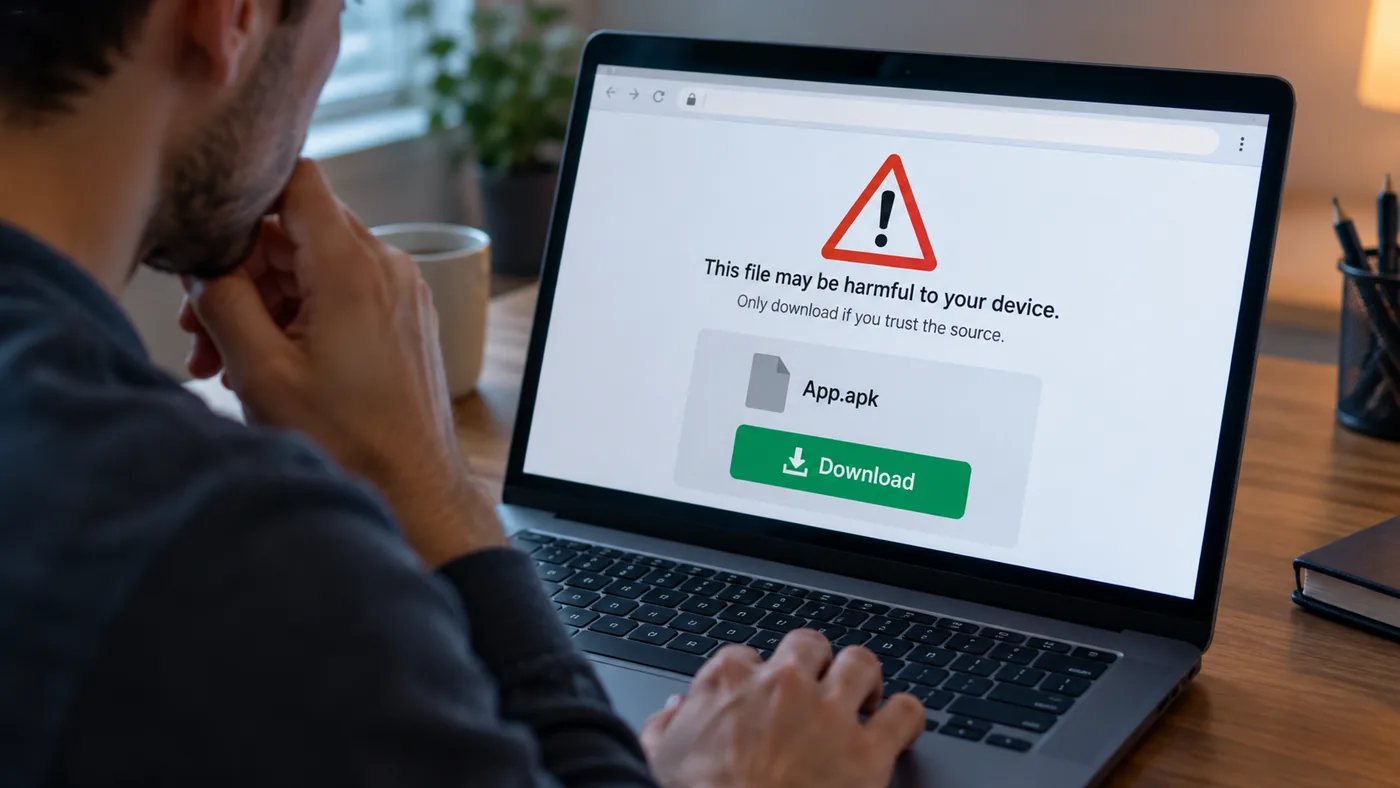
A search engine may show files labeled “SuperBox app store download” or “SuperBox app store APK.” The filename alone does not establish who made the file, whether it matches your device, or what permissions it requests. Do not install an unknown package just because a page claims it restores the store. Use the device’s supported sources and ask the retailer for model-specific guidance when the built-in path is missing.
The concern is practical as well as legal: an unverified installer can expose the device or accounts to malware, and a third-party app’s content rights are separate from the legality of owning the hardware. If you are unsure about those distinctions, the site’s is superbox legal article addresses the device-versus-content question without treating every app as equivalent.
When should you contact support?
Contact the seller if the APP Store cannot be found in Apps after the box has completed startup, the internet connection works, and a normal restart changes nothing. Share the exact full model name, your order number, current software version if visible, and a photo of the screen. Do not post a password, verification code, or payment information. The SuperBox S8 Max setup guide can help confirm that the initial hardware and connection steps were completed before support investigates the interface.
Avoid a factory reset unless support confirms it is appropriate for your exact model and symptom. A reset may remove local settings and require setup again, while a missing home shortcut may need only a simple interface change. If Blue VOD itself is present and you want help with its features, the SuperBox S8 Blue VOD guide is more relevant than a store repair.
FAQ
Is the SuperBox S8 APP Store the same as Google Play Store?
No. The demonstrated S8 interface distinguishes its built-in APP Store from Google Play Store. Use the catalog appropriate to the app and follow the interface on your installed software version.
What if Blue TV is installed but does not appear on the home screen?
Check the Apps area first. In the demonstrated interface, installing an app and adding it as a home shortcut are separate actions. A missing shortcut does not by itself mean the installation failed.
Should I buy a new box because the store icon is missing?
Usually not before confirming the symptom and seeking model-specific help. If the device is still within the seller’s support or warranty period, keep the order details ready and ask the retailer to review it.
Bottom line
When the SuperBox S8 App Store seems missing, identify whether you have lost a shortcut, an app listing, or the store interface itself. Confirm the connection, use supported app sources, and bring exact model details to support if the built-in path remains unavailable. Buyers comparing a replacement can review the latest SuperBox choices for U.S. homes, but do not mistake an interface issue for proof of failed hardware.
Related guide: Explore the SuperBox S8 buying guide