
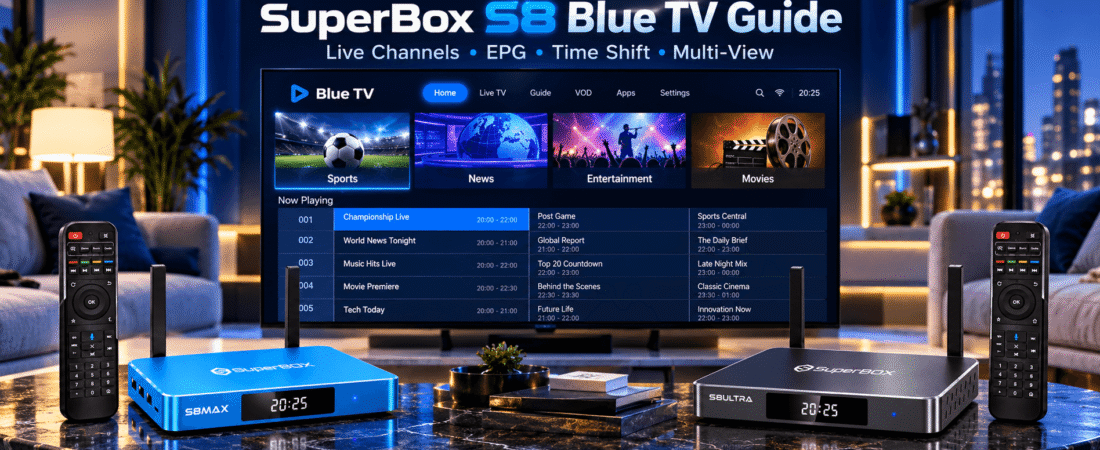
For many SuperBox S8 owners, Blue TV is one of the most frequently used entertainment applications. Whether you enjoy live sports, breaking news, local television, movies, or family entertainment, Blue TV brings live channel browsing and useful viewing tools together in one television-friendly interface.
But there is more to Blue TV than simply choosing a channel and watching it. The application includes an Electronic Program Guide (EPG), organized channel categories, Favorites, supported Time Shift playback, and additional viewing options that can make everyday television much more convenient.
This Complete Guide to SuperBox S8 Blue TV explains how the application works, how to get started, how to use its most helpful features, and what to check when a channel or program guide is not working correctly.
If you are new to the SuperBox ecosystem, explore our SuperBox TV Box collection or read our SuperBox S8 Review for an overview of the four current models.
What Is Blue TV on SuperBox S8?
Blue TV is a live television application available within the SuperBox entertainment ecosystem. It is designed for browsing and playing supported live television channels through an internet connection.
Unlike traditional cable television, which relies on a dedicated cable connection, Blue TV operates through the SuperBox media player and an available broadband connection. The SuperBox sends the video and audio to your television through HDMI.
The interface is organized around familiar television functions. Users can browse channels by category, see program information, open the channel guide, save frequently watched channels, and use supported playback options. That makes Blue TV particularly approachable for people moving from conventional cable television to a streaming-based home entertainment system.
Blue TV at a Glance
| Feature | What It Does |
|---|---|
| Live TV | Provides access to available live channel streams. |
| Electronic Program Guide | Shows channel listings and available scheduling information. |
| Channel Categories | Organizes channels into groups such as sports, news, entertainment, and movies. |
| Favorites | Keeps frequently watched channels together. |
| 7-Day Time Shift | Allows eligible previous programming to be accessed within a supported playback window. |
| Multi-View | Displays multiple supported channel streams on compatible SuperBox S8 models. |
| Remote Navigation | Supports convenient television-style browsing using a compatible SuperBox remote. |
Available channels, guide information, playback functions, and app features may vary depending on software version, content source, region, and device model.
Which SuperBox S8 Models Support Blue TV?
Blue TV is listed as part of the current SuperBox S8 entertainment ecosystem across all four models:
All four SuperBox S8 models use the Android 12 platform and support WiFi 6 and Gigabit Ethernet connectivity. However, their storage capacities, included remotes, and some advanced viewing functions are different.
For example, the SuperBox S8 Max and SuperBox S8 Ultra are listed with broader Full Multi-Viewing support, while the SuperBox S8 Pro and SuperBox S8 Plus have more limited Multi-Viewing support on selected channel groups.
If multiple-screen viewing is an important buying factor, our SuperBox S8 Ultra vs SuperBox S8 Max comparison explains the differences between the higher-tier models.
How to Install Blue TV on SuperBox S8
Before opening Blue TV, complete the basic setup of your SuperBox. Connect the device to your television through HDMI, attach the supplied power equipment, and establish an internet connection through WiFi or Ethernet.
Blue TV is accessible through the SuperBox application ecosystem, although it may not be installed automatically on every new device.
Step 1: Open the SuperBox App Store
From the SuperBox S8 home screen, locate the built-in App Store or App Installer. The name and appearance of this area may differ depending on the installed software version.
Step 2: Find Blue TV
Browse the available applications and locate Blue TV. Use the application name and icon to confirm that you have selected the intended live television app.
Step 3: Install the Application
Select Install or Download if the application is available in the on-device catalog. Wait for the installation process to finish before opening another application.
Step 4: Launch Blue TV
Open Blue TV from the application screen and allow the initial channel and program information to load. The app may need additional time during its first launch to initialize its channel categories and guide information.
Installation Tip: Use the supported application installer supplied with your SuperBox. Avoid downloading unverified APK files from random websites. If Blue TV is not listed, check your system version or contact your device retailer for compatible installation guidance.
For additional first-time connection instructions, see our SuperBox Setup Guide.
Understanding the Blue TV Home Interface
The Blue TV interface is built around live television navigation. Instead of treating every channel as an individual application, it organizes available channels into a unified browsing environment.
Depending on your current version, the screen may contain a channel list, categories, program information, a preview area, and playback controls.
The exact layout can change after software updates, but the main purpose remains the same: help viewers move between channels without repeatedly returning to the Android home screen.
Browse by Channel Category
If you already know what kind of content you want, start with the category list.
Common channel groups include:
- Sports: Available sports channels and live sports programming.
- News: National, local, and international news broadcasts.
- Entertainment: General entertainment, reality shows, and lifestyle television.
- Movies: Movie-oriented linear television channels.
- Kids & Family: Children’s entertainment and family programming.
- Local TV: Available regional and network-affiliate channels.
- International: Supported channels from different regions and language groups.
- 24/7 Programming: Continuous channels organized around particular types of entertainment.
Browsing by category is usually much faster than scrolling through the entire channel list. For more detailed channel examples, visit our SuperBox Channels Guide.
How to Use the Blue TV Electronic Program Guide (EPG)
One of Blue TV’s most useful features is its Electronic Program Guide, commonly called the EPG. The EPG is similar to the schedule grid used by traditional cable television providers. It allows you to examine the available channel lineup and see program information without manually opening every channel.
Depending on the channel and current guide data, the EPG may display:
- Channel names or numbers
- The program currently airing
- Upcoming program titles
- Scheduled start and end times
- Additional program information
- Playback indicators on supported channels
How to Open the Program Guide
While watching a channel, press OK or use the guide control shown in the Blue TV interface. Use the directional buttons to move through the available channels and program listings.
When you find a program you want to watch, select its channel using the on-screen controls.
Some Blue TV versions offer more than one guide layout, including list or grid-style views. If that option is available, choose whichever view is easier for you to navigate.
Why the EPG Matters
The EPG is especially helpful for sports fans and people who regularly watch scheduled programming. Instead of switching channels randomly, you can check what is currently playing and what is scheduled next.
For households accustomed to traditional television, this familiar browsing experience makes the transition to internet-based live viewing easier.
How to Create a Favorites List in Blue TV
A large channel lineup is useful, but most people only watch a relatively small number of channels every week. Favorites helps solve that problem by keeping your most frequently watched channels in one convenient area.
Adding a Channel to Favorites
- Open Blue TV.
- Browse to the channel you want to save.
- Highlight the channel in the channel list or program guide.
- Use the Favorite command shown on screen.
- Confirm that the channel has been added to your Favorites section.
On some remote and application versions, the Yellow function button or a long press of OK can be used to manage Favorites. Because remote layouts and app commands may vary, follow the controls shown in your version of Blue TV.
When Favorites Become Useful
Imagine a household where one person follows professional sports, another watches the evening news, and someone else prefers movies or entertainment channels.
Instead of searching through the full lineup every time the television is turned on, a Favorites list keeps those preferred channels within easier reach. You can also update the list as your viewing habits change.
How Does 7-Day Time Shift Work on Blue TV?
Some television programs are difficult to watch at their scheduled time. You may be working, traveling, or simply watching something else. That is where supported 7-Day Time Shift functionality becomes valuable.
Time Shift allows viewers to access eligible earlier programming within a defined playback period rather than being limited to what is airing live at that moment.
How to Find Supported Time Shift Programming
Look for a playback or clock-style indicator in the channel guide, or open the relevant Playback area if it is available in your current software.
Then:
- Select a channel that supports the feature.
- Open its available previous-program listings.
- Choose the date or program you want to revisit.
- Start playback using the on-screen controls.
- Use the available pause, rewind, or timeline controls when supported.
Not every channel or individual program supports the same playback window. The available archive and navigation options depend on the underlying app and content source.
Time Shift vs Built-in Recording
These features should not be confused. Time Shift is designed around accessing supported previously available programming.
Built-in Recording lets users capture compatible content through supported recording tools, with any saved files subject to storage capacity and application limitations.
The current SuperBox S8 generation lists both recording and Playback features, but exact behavior depends on the application and content.
Watching More Than One Channel With Multi-View
Sports fans often want to keep track of more than one event at a time. For example, you may want to follow a football game while checking another live sports broadcast, or keep news visible while watching a different program.
On supported SuperBox S8 configurations, Multi-View allows more than one compatible channel stream to appear on screen.
Picture-in-Picture (PiP)
Picture-in-Picture typically displays one program as the main picture and another in a smaller viewing window. This provides a practical way to keep an eye on a second program without leaving the primary viewing experience.
Multi-Viewing
Multi-Viewing uses multiple sections of the display to show supported streams simultaneously. This is particularly useful during busy sports schedules or when several programs overlap.
The actual layouts and supported channel combinations depend on the SuperBox S8 model and current application version.
Which SuperBox S8 Models Offer Broader Multi-Viewing?
According to the current S8 feature comparison:
- SuperBox S8 Ultra: Full-channel Multi-Viewing support.
- SuperBox S8 Max: Full-channel Multi-Viewing support.
- SuperBox S8 Plus: Multi-Viewing on selected PPV and ESPN channel groups.
- SuperBox S8 Pro: Multi-Viewing on selected PPV and ESPN channel groups.
If this feature matters more than storage capacity alone, check our SuperBox S8 Max vs S8 Plus comparison before choosing a model.
SuperBox S8 Remote Shortcuts for Blue TV
Learning a few basic remote controls can make the Blue TV interface faster and more comfortable to use.
| Remote Control | Common Use |
|---|---|
| OK / Enter | Selects a channel or opens available channel controls. |
| Directional Buttons | Moves through the channel list, categories, and guide. |
| Number Buttons | May provide direct channel-number selection. |
| Yellow Function Button | May add or remove channels from Favorites. |
| Blue Function Button | May open additional Blue TV settings. |
| Return / Back | Returns to the previous screen or closes a menu. |
| Microphone Button | Activates supported voice functions when properly paired. |
These are commonly documented controls rather than guaranteed button assignments on every remote and software revision. Always use the instructions visible on your own device.
Blue TV vs Blue VOD: What Is the Difference?
Blue TV and Blue VOD are designed for different viewing situations.
Blue TV focuses on live channel viewing. Blue VOD focuses on choosing individual movies and television episodes on demand.
| Blue TV | Blue VOD |
|---|---|
| Live television channels | On-demand movies and TV series |
| Channel categories and program schedules | Titles, seasons and individual episodes |
| Electronic Program Guide | Search, Favorites and viewing History |
| Supported live-program Time Shift | On-demand playback and subtitle controls |
If you want to watch a live sports event or check the evening news, Blue TV is the relevant application.
If you want to select a movie or begin a particular episode of a series, Blue VOD is generally the more appropriate option. For more information, view our How to Use Blue VOD on SuperBox S8 guide.
Does Blue TV Require a Monthly Subscription?
Blue TV is commonly presented within the SuperBox ecosystem as an entertainment application that does not require a separate monthly Blue TV subscription under the current device offering.
This is one reason the platform interests buyers looking for a straightforward home entertainment setup.
However, the cost of purchasing the SuperBox hardware is separate from your home broadband service. Other third-party applications may also have their own paid subscriptions or account requirements.
Content availability and access conditions can change independently of the hardware, so check the current seller and application information rather than assuming every unrelated television service is included.
Blue TV Buffering or Freezing? What to Check First
Even with a modern SuperBox S8, occasional playback issues can occur. A channel that buffers is not necessarily evidence that the box itself is defective. The problem may come from the home network, a specific source, temporary service conditions, or the application.
1. Try Another Channel
If one channel freezes while others play normally, the issue may be limited to that particular stream. Switch to another channel to check whether the problem affects the entire application.
2. Check the Internet Connection
Open your SuperBox network settings and confirm that WiFi or Ethernet is connected. If other devices are also having connection problems, investigate the router or broadband service.
3. Test Ethernet
If your router is located near the television, connect the SuperBox through Gigabit Ethernet. A wired connection can reduce wireless interference and help determine whether WiFi is contributing to unstable playback.
4. Restart Blue TV
Close the application and open it again. This can resolve temporary application issues without changing the system configuration.
5. Restart the SuperBox
If several channels or applications are behaving unexpectedly, restart the box and allow it to finish loading. Then open Blue TV again.
6. Avoid Changing Too Many Advanced Settings
Some Blue TV versions provide additional video or network-related controls. Only change an advanced setting when you understand what it does. Make one change at a time so you can identify whether it improves playback.
If the problem is affecting the wider device rather than Blue TV alone, see our SuperBox Troubleshooting Guide.
What If the Blue TV Program Guide Is Blank?
Sometimes the channel list loads, but the Electronic Program Guide shows incomplete or missing program details. This does not always mean the application has stopped working.
Try the following:
- Check that the SuperBox has an active internet connection.
- Confirm the device date, time, and time zone are correct.
- Close and reopen Blue TV.
- Allow the guide time to refresh.
- If necessary, open Android Settings, locate Blue TV under Apps, and clear the application cache.
Clearing the cache is different from clearing all application data. Avoid selecting Clear Data unless you understand that it may reset app preferences or locally stored information.
Guide listings also depend on current schedule data being available from the underlying source.
What Does “Devices Abnormal” Mean in Blue TV?
If Blue TV displays a message such as Devices Abnormal, the application may be having trouble completing a device- or service-related check.
Begin with the simpler possibilities:
- Confirm that the internet connection works.
- Check the device date and time.
- Restart the application.
- Restart the SuperBox.
- Check whether the app or device has an available supported update.
If the message continues, contact the retailer or appropriate application support provider.
Be prepared to provide the exact SuperBox model, the error message, and your order information. Do not post serial numbers, MAC addresses, or other device identifiers publicly.
Simple Ways to Get More From Blue TV
Once the basic features are working, a few habits can make the app much easier to use every day.
Create a Small Favorites List
Start with ten or fifteen channels you watch regularly. You can always expand the list later. A focused Favorites section is easier to manage than saving every channel that looks interesting.
Check the EPG Before Busy Sports Evenings
When several live games overlap, use the schedule guide to identify the channels and start times you want to follow.
Explore Time Shift Before You Need It
Try the available playback feature on a supported channel before relying on it for an important program.
Learn Your Remote Shortcuts
Using channel-number input, navigation buttons, and Favorites shortcuts can reduce the time spent moving between menus.
Keep the Network Stable
A well-positioned router or a reliable Ethernet connection can have a greater effect on everyday streaming than changing unrelated picture settings.
Frequently Asked Questions About SuperBox S8 Blue TV
What is Blue TV on SuperBox S8?
Blue TV is a live television application in the SuperBox entertainment ecosystem. It provides channel browsing, program-guide information, Favorites, and additional viewing features on supported devices.
Is Blue TV available on SuperBox S8 Pro, Plus, Max and Ultra?
Yes. The current SuperBox S8 comparison lists Blue TV across all four models. Advanced features such as Multi-Viewing can differ between them.
How do I install Blue TV on SuperBox?
Connect your SuperBox to the internet, open its supported App Store or App Installer, locate Blue TV, and follow the on-screen installation instructions if the application is available.
Does Blue TV have an EPG?
Yes. Blue TV includes an Electronic Program Guide that displays available channel and scheduling information.
Can I save favorite channels in Blue TV?
Yes. Supported app versions provide Favorites management, allowing frequently watched channels to be collected in a separate section.
Does Blue TV support 7-Day Time Shift?
Supported SuperBox models and channels provide Time Shift or Playback features for eligible previous programming. Availability and playback windows depend on the source.
Can I watch multiple live channels at once?
Multi-Viewing is available on supported SuperBox S8 models and channel groups. The SuperBox S8 Max and SuperBox S8 Ultra provide broader Full Multi-Viewing support than the SuperBox S8 Pro and SuperBox S8 Plus.
Is Blue TV the same as Blue VOD?
No. Blue TV focuses on live channel viewing, while Blue VOD focuses on on-demand movies and television series.
Why does Blue TV keep buffering?
Possible causes include weak WiFi, internet congestion, app issues, or a temporary problem with a specific stream. Try another channel, check the network, restart the app, and test Ethernet where possible.
Does Blue TV have a separate monthly fee?
Blue TV is currently described as not requiring a separate monthly Blue TV subscription under the SuperBox device offering. Internet access and unrelated third-party subscription services are separate.
Final Thoughts: Make Blue TV Part of Your Everyday SuperBox Experience
Blue TV brings together many of the television functions that people use most often: live channel browsing, organized categories, program schedules, Favorites, and supported options for reviewing earlier broadcasts.
For sports enthusiasts, Multi-View and program-guide navigation can be particularly useful. For everyday viewers, Favorites and channel categories make it easier to reach familiar programming without endless scrolling.
The best experience comes from learning the main features first, keeping the device connected to a stable network, and exploring advanced functions only when they match your viewing habits.
Whether you choose the SuperBox S8 Pro, SuperBox S8 Plus, SuperBox S8 Max, or SuperBox S8 Ultra, understanding Blue TV helps you make better use of the wider SuperBox entertainment ecosystem.
Explore the latest models on our SuperBox official store, or browse the available products to find the SuperBox S8 configuration that best matches your needs.