
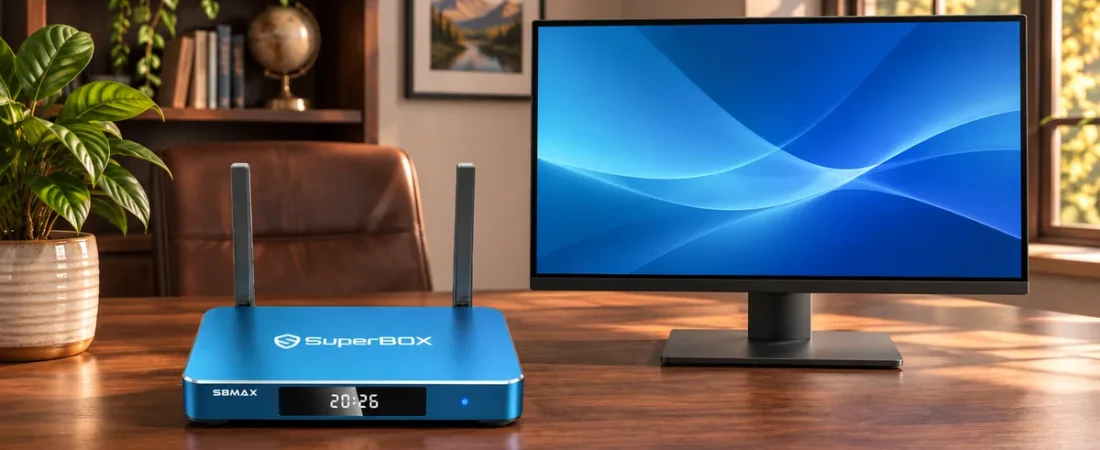
For a SuperBox S8 Max computer monitor setup, start with a compatible display that has an HDMI input. The connection is straightforward, but a useful desk setup takes more planning than plugging in a cable. You need to know where sound will play, how you will switch between the SuperBox S8 Max and your computer, and whether the monitor can show a comfortable picture from the box. If you are exploring the SuperBox S8 lineup for your home, start with the display you already own.
You can then browse the current SuperBox models after checking the monitor’s actual ports and audio features.
SuperBox S8 Max computer monitor setup: three checks
The current SuperBox S8 Max listing identifies an HDMI connection and includes an HDMI cable in the package. The retailer’s FAQ says a compatible TV or display needs an HDMI input, power, and internet for setup. That makes an HDMI-equipped monitor a reasonable screen to consider. It does not mean that every monitor will provide sound, accept every picture setting, or switch conveniently between two connected devices.
Some monitors include speakers, some provide an audio output, and others have neither. Look up your exact model before ordering. The older-TV HDMI checklist covers the basic display connection.
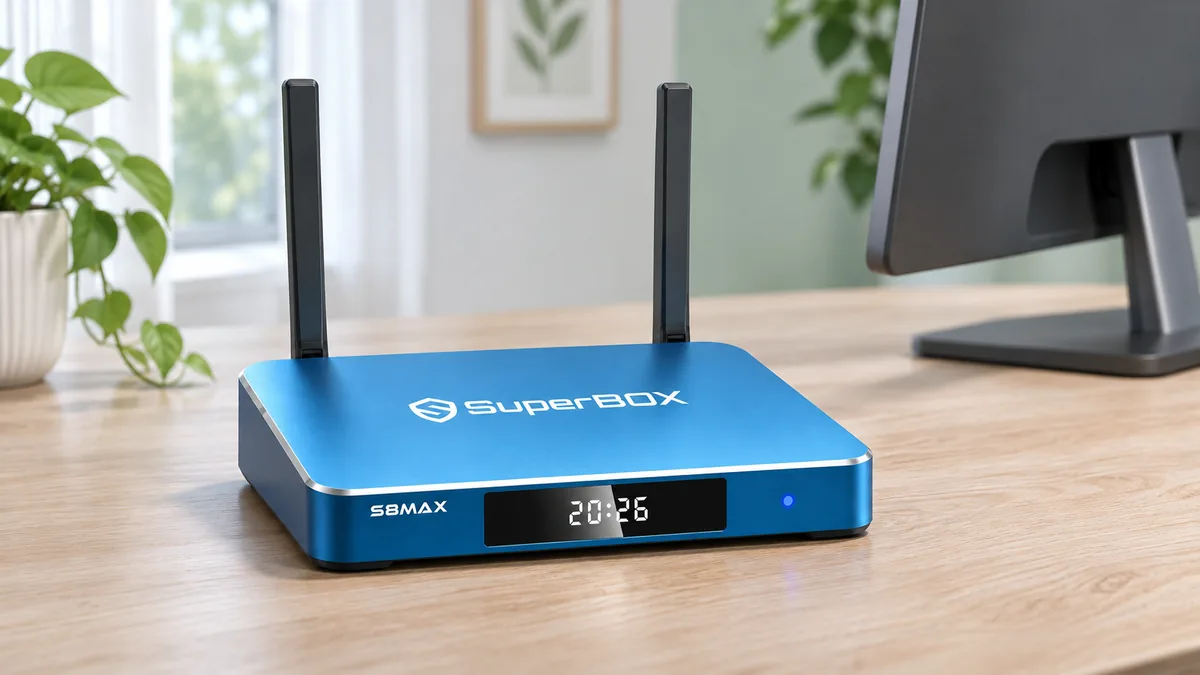
Check which direction each HDMI port works
Find an HDMI port labeled as an input on the monitor. The SuperBox S8 Max sends its picture to a display through HDMI; the monitor receives that signal. A laptop’s HDMI connector is usually an output for sending the laptop picture to another screen. Connecting the SuperBox S8 Max to that output does not turn the laptop into a monitor. If you own an all-in-one computer with a special HDMI-input mode, verify that feature in its manual before treating it as a display.
If your monitor has only DisplayPort, USB-C, DVI, or VGA, do not assume an adapter will solve the problem. Conversion direction, picture modes, and audio handling vary. Check both manuals; direct HDMI is the simplest path. The SuperBox S8 Max first-day setup guide explains the box-side HDMI and power connection.
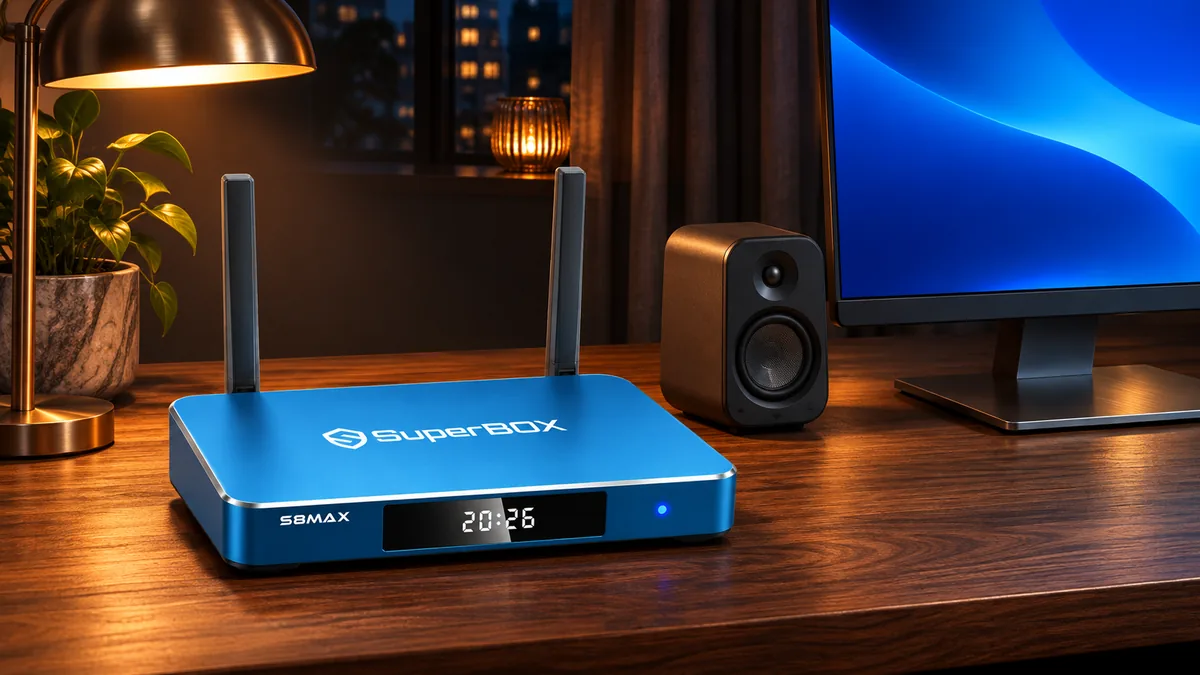
Decide how you will hear the program
HDMI can carry sound with the picture, but a monitor cannot play it without speakers or a supported audio output. Do not infer speakers from a volume menu, HDMI logo, or audio socket. Read the monitor’s specifications.
| What your monitor has | Practical audio plan | What to verify |
|---|---|---|
| Built-in speakers | Try the direct HDMI connection first. | Confirm the monitor can play audio from its HDMI input and that neither device is muted. |
| Audio output but no speakers | Use compatible external speakers if the monitor manual supports that output. | Check whether the socket is headphone output or line-out; they are not interchangeable on every model. |
| No usable speakers or audio output | Plan a separate audio route before buying. | Ask the retailer and audio-equipment maker about the exact box, monitor, and speaker combination. |
The SuperBox S8 Max listing also names SPDIF, but that label does not establish compatibility with every speaker or soundbar. Check the connections and audio formats your equipment accepts. The SuperBox S8 Max soundbar guide follows a television-based path; its ARC steps do not apply to a monitor without ARC.
If the picture appears but you hear silence, start with the monitor’s speaker specification, selected input, and volume. Then check the box volume and HDMI connection. The picture-with-no-sound checklist helps separate an audio-route issue from an app-specific issue. Avoid a factory reset as the first response to a screen that never had speakers.
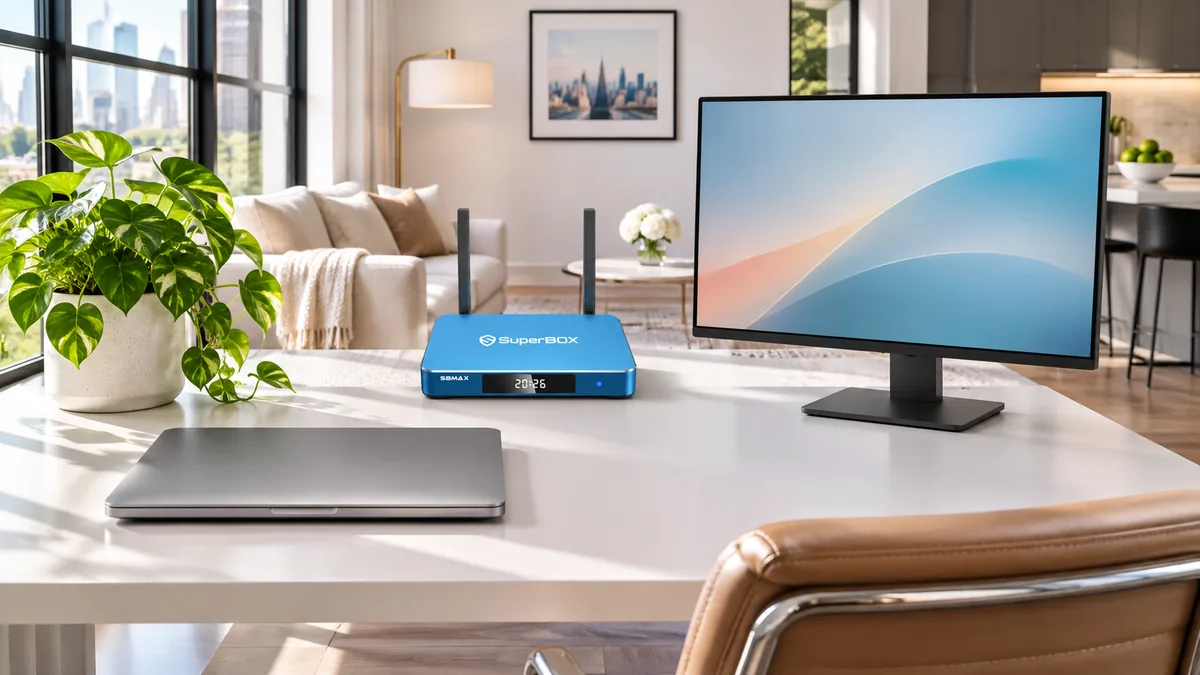
Sharing one monitor with a PC
Many desk monitors have two or more inputs. If yours has a free HDMI input, you may be able to keep the PC on one input and the SuperBox S8 Max on another, then use the monitor’s own input or source control to choose what appears. This changes which device you see; it does not combine a Windows desktop and a SuperBox picture into one computer workspace. The SuperBox S8 Max remote controls the box, while the monitor’s buttons or remote, if provided, control the display input.
Write down which source is connected to which port. If the PC already occupies the monitor’s only HDMI input, inspect the other inputs before buying a switch. A computer may be able to use a different supported monitor connection, or a compatible HDMI switch may suit the desk. A switch introduces another piece of hardware and another source-selection step, so confirm its direction and supported picture modes before purchasing. The one-box-and-two-displays guide addresses a different problem: sending a picture to separate screens. Switching two sources on one monitor does not give two people independent viewing.
Match the picture to the monitor, not to the decoder label
Read the monitor’s native resolution and its accepted HDMI modes. A 1080p monitor will show a 1080p-sized picture even if the source material or a device specification mentions a larger number. A 4K monitor still needs compatible content, software, and an accepted HDMI mode to display 4K. The SuperBox S8 Max listing mentions H.265 6K decoding and separately describes 4K playback on compatible screens. Decoding capability is not a promise that the monitor will receive a 6K signal. The 6K-versus-4K explanation unpacks that distinction.
Aspect ratio matters at a desk. Most TV video is framed for a wide 16:9 picture. If you own an ultrawide monitor, expect to check how it displays ordinary video: black space at the sides or another scaling treatment may be preferable to a stretched image. We have not verified a SuperBox S8 Max-specific ultrawide output mode, so do not buy on the assumption that every app will fill a 21:9 screen. If the picture is cut off, check the monitor’s aspect-ratio or scaling controls and the box’s currently available display settings rather than forcing a high resolution.
Power and internet still need their own plan
The HDMI cable is a signal connection, not the SuperBox S8 Max power supply. Use the power equipment supplied for your unit and a nearby outlet. The current product listing identifies both Wi-Fi 6 and Gigabit Ethernet, so you can plan either a wireless connection or a compatible cable to the router. A desk may be closer to a router than a living-room TV, but the better network choice depends on your actual layout. The SuperBox S8 Wi-Fi versus Ethernet guide helps make that room-specific choice.
Leave room for the box and its antennas without blocking the monitor’s controls or pulling cables across your work area.
A five-minute compatibility test
- Read the monitor model label. Find its manual and confirm a working HDMI input, accepted picture modes, and whether it has speakers or a supported audio output.
- Map the desk. Identify the PC’s current input, the input reserved for SuperBox S8 Max, a power outlet, and an internet route.
- Connect directly. Use the supplied HDMI cable between the SuperBox S8 Max and the monitor’s HDMI input, then connect the box’s supplied power equipment.
- Select the source. Use the monitor’s input control to display the port connected to the box. Follow the prompts shown on your unit; menu names can change with software versions.
- Test picture and sound separately. Open content you are entitled to use, confirm a comfortable picture, and verify the audio route you planned. Then switch back to the PC to make sure daily use remains convenient.
If the monitor says “No Signal,” confirm that you selected the correct input, the box is powered, and both ends of the HDMI cable are seated. The retailer’s support page recommends checking a compatible alternate HDMI port when available. If another HDMI source works on the monitor but the box does not, note the monitor model and what you see before contacting support. Avoid guessing at hidden reset sequences or downloading unofficial software.
Is a computer monitor a good reason to choose SuperBox S8 Max?
A monitor does not require the most expensive SuperBox S8 model. First decide whether your desk provides a usable screen and audio path. If it does, SuperBox S8 Max is a reasonable model to investigate: its current listing confirms HDMI, an included HDMI cable, Wi-Fi 6, Gigabit Ethernet, a voice remote, and 64GB of storage. The monitor itself does not make apps faster or unlock programs.
Check the apps and content you intend to use in your region. Availability and rights can change; a device purchase does not include every third-party subscription or internet service. For group viewing, compare seating distance and speaker needs with a living-room TV.
Common questions
Can I plug SuperBox S8 Max into my laptop’s HDMI port?
Usually no. A typical laptop HDMI port sends a picture out; it does not receive the SuperBox S8 Max picture. Check your exact laptop documentation if it advertises a special input feature.
Will a monitor without speakers play SuperBox S8 Max audio?
Not through the screen itself. Look for a documented audio output that can feed suitable speakers, or plan another supported audio path. The presence of HDMI does not prove the monitor has speakers.
Can I use the monitor for my PC and SuperBox S8 Max?
Yes, if the monitor and connections support the two sources. You select which source to display using the monitor or a suitable switch. That is one screen showing one selected input at a time, not a PC app running the box.
Make the desk work before you order
A direct HDMI input, a documented sound route, and a convenient way to return to the PC are the three checks that turn a compatible monitor into a useful SuperBox S8 Max setup. Review the current SuperBox S8 collection alongside your monitor manual and choose for your actual room. If code SP10 is still active and your order qualifies, it may provide a 10% discount; confirm the discount appears in the final checkout total before paying.
Related guide: See the SuperBox S8 model overview