

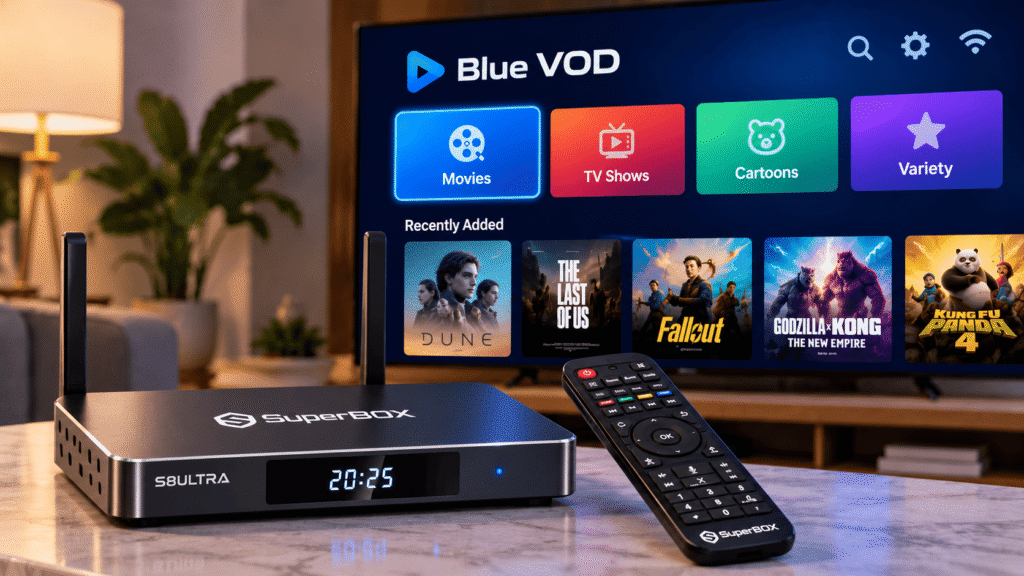
If you own a SuperBox S8, Blue VOD is one of the main areas designed for browsing movies and TV series on demand.
Opening the app and starting a movie is easy, but Blue VOD includes several useful tools that many new users overlook. Search filters, Favorites, History, episode selection, subtitle controls, playback speed, aspect ratio, and decoding options can all make the app easier to use once you know where they fit into the viewing experience.
This guide takes a practical approach. Instead of walking through every menu in order, we will focus on the things most SuperBox users actually want to do: find content faster, save titles for later, return to recent viewing, select episodes, adjust subtitles, manage playback settings, and troubleshoot common Blue VOD problems.
If you are still getting familiar with the SuperBox S8 family itself, our SuperBox S8 Review provides a broader overview of the current models before you explore individual apps.
What Is Blue VOD on SuperBox S8?
Blue VOD is the on-demand entertainment section used for browsing movies, television series, seasons, and individual episodes on supported SuperBox S8 devices.
Its purpose is different from Blue TV.
| App | Main Use |
|---|---|
| Blue TV | Live television and channel browsing |
| Blue VOD | Movies, TV series, seasons and episodes on demand |
| Playback | Returning to recently available supported programming |
Once you understand the difference, choosing the right app becomes much easier.
Blue VOD Quick Start: The Simple Way to Begin
For most users, the basic workflow looks like this:
- Open Blue VOD from the SuperBox home interface.
- Choose Search or browse one of the content sections.
- Open a movie or TV series.
- Review the title information.
- For a TV show, select the correct season and episode.
- Start playback.
- Open the player controls only if you need subtitles or another playback adjustment.
Best starting point: If the video already looks and sounds correct, leave the advanced playback settings at their defaults. Change settings only when you have a specific reason.
Learn the Main Blue VOD Sections
The Blue VOD interface organizes content into several areas. Depending on the current app version, you may see categories similar to:
- Search
- Recommend
- Newest
- Movies
- TV Series
- Favorite
- History
- Settings
You do not need to use every section in the same way.
Recommend and Newest are useful when you want to browse, while Search is better when you already know what you want to watch. Favorites become your personal shortlist, while History helps you return to something you recently opened.
Method 1: Browse Blue VOD When You Do Not Know What to Watch
Not every viewing session begins with a specific title. If you simply want to see what is available, start with:
- Recommended for suggested content
- Newest for recently added listings
- Movies when you want films only
- TV Series when you want episodic content
Use the directional pad on your SuperBox remote to move through the titles and press OK to open the detail screen.
Browsing is particularly useful when you only remember part of a title, want something new, or are choosing content with other people in the room.
Method 2: Search for a Specific Movie or TV Show
If you already know what you want, use the Search section. Rather than typing an unnecessarily long title, begin with a short and distinctive keyword.
Depending on the current Blue VOD interface, search options can include criteria such as:
- Name
- Cast
- Director
This gives you several ways to find content. If you know the title, search by Name. If you remember the actor but not the movie title, try Cast. If you remember the director, search using the corresponding field.
What If Blue VOD Shows “No Results Found”?
A search returning no results does not automatically mean that something is wrong with your SuperBox.
Try these checks first:
- Check the spelling.
- Remove unnecessary words.
- Search with one distinctive keyword.
- Check whether the correct content type is selected.
- Confirm whether Name, Cast, or Director is the active search field.
- Try browsing Movies or TV Series manually.
If Blue VOD fails to load, or several apps have problems at the same time, the issue may be broader than one missing title.
For system-level problems, see our SuperBox troubleshooting guide.
How to Open and Play a Movie
Select a movie from Search, Recommend, Newest, or Movies.
The movie detail page may show information such as:
- Title
- Description
- Genre
- Year
- Language
- Cast
- Director
Take a moment to confirm that you have selected the correct title before starting playback, especially when multiple movies have similar names.
How to Watch a TV Series and Choose an Episode
TV series require one extra step compared with movies.
After opening the series page:
- Select the correct season.
- Choose the episode you want.
- Confirm the episode number or title.
- Start playback.
If you accidentally start the wrong episode, return to the series page and choose another episode instead of changing unrelated playback settings.
Use Favorites as Your Personal Blue VOD Watchlist
If you find something interesting but do not want to watch it immediately, use the Favorite function.
This gives you a quicker way to return later instead of searching for the title again.
Favorites work particularly well for:
- Movies you want to watch later
- TV series you are currently following
- Titles you want other people in the household to see
- Content you discovered while browsing but do not have time to start
Think of Favorites as a simple personal shortlist inside Blue VOD.
Favorites vs History: What Is the Difference?
These two sections may seem similar, but they serve different purposes.
Favorites contains content you intentionally chose to save.
History helps you return to something you recently opened or watched.
So if you remember watching part of a movie yesterday but never added it to Favorites, check History first.
Shared household tip: If several people use the same SuperBox, History may show recent viewing activity to everyone using that device.
How to Open Blue VOD Playback Controls
Once a movie or episode is playing, use the remote to bring up the on-screen playback controls.
Depending on the current app version, the player can provide controls for:
- Play and Pause
- Timeline navigation
- Previous or Next
- Episode selection
- Subtitle tracks
- Aspect ratio
- Playback speed
- Decode mode
- Internet Speed options
The player settings icon is where most of the advanced controls are located.
How to Change Subtitles in Blue VOD
While a movie or episode is playing, open the player settings and look for Subtitle Tracks.
If subtitle tracks are available for that title, choose the language you prefer.
Subtitle availability can vary from one movie or episode to another, so a language available on one title may not be available on another.
If the subtitle language you want is not listed, changing other playback settings will not create an additional subtitle track.
How to Fix Subtitles That Appear Too Early or Too Late
Sometimes a subtitle track is available but does not perfectly match the dialogue timing.
If your Blue VOD version provides a subtitle timing adjustment:
- Open the player settings.
- Find the subtitle timing option.
- Make a small adjustment.
- Replay a short section.
- Adjust again only if needed.
Avoid making a large change immediately.
This control adjusts subtitle timing only. It does not translate the subtitle language.
Should You Change the Aspect Ratio?
For most videos, leave Aspect Ratio at the default setting.
Only consider changing it when the picture appears:
- Stretched
- Squeezed
- Too narrow
- Incorrectly fitted to the TV screen
The Blue VOD aspect-ratio setting affects the video being played. It is different from the main SuperBox display-area setting used for the home interface
How Playback Speed Works
Normal playback is typically 1x.
If your Blue VOD version provides additional speeds, you can intentionally speed up or slow down playback.
However, playback speed should not be used as a fix for buffering.
If the video repeatedly pauses to load, investigate the network or source instead.
Should You Change the Decode Setting?
Blue VOD may provide more than one video decoding mode. If the video is already playing normally, leave the current Decode setting alone. Only test another mode if one particular title has a repeatable video problem.
A better testing method is:
- Note the current Decode setting.
- Change to one alternative.
- Replay the same scene.
- Compare the result.
- Return to the original option if playback becomes worse.
If several unrelated movies all have the same problem, the cause may be network-related or app-related rather than decoding.
What Does the Blue VOD Internet Speed Setting Do?
Some Blue VOD versions include an Internet Speed option with labels such as:
- Fast
- Faster
- Fastest
These are app-side playback preferences. They are not the same as performing an actual internet speed test.
Do not assume that selecting Fastest must automatically produce better video.
Real playback performance still depends on:
- Your home internet plan
- Router quality
- WiFi signal strength
- Ethernet connection
- Other devices using the network
- The selected source
- Current server conditions
If playback is already stable, there is usually little reason to change this setting.
A Better Way to Troubleshoot Blue VOD Buffering
If a movie suddenly begins buffering, do not immediately change every player setting.
Use this order instead.
1. Test Another Movie or Episode
If only one title has trouble, the problem may be limited to that particular source.
2. Test Another App
If another SuperBox S8 app works normally, the whole internet connection may not be the problem.
3. Check WiFi or Ethernet
Confirm that the SuperBox S8 is still connected to the network.
4. Close and Reopen Blue VOD
A temporary application issue can sometimes be resolved by reopening the app.
5. Restart the SuperBox
A clean restart can help clear temporary software or memory issues.
6. Test Ethernet If Your Router Is Nearby
If Ethernet works smoothly while WiFi continues buffering, the wireless connection may be contributing to the problem.
If you are setting up your device for the first time, our SuperBox Setup Guide covers WiFi, Ethernet, HDMI, and basic first-use configuration.

Which SuperBox S8 Models Can Use Blue VOD?
Blue VOD is part of the current entertainment ecosystem across the SuperBox S8 lineup, including:
- SuperBox S8 Pro
- SuperBox S8 Plus
- SuperBox S8 Max
- SuperBox S8 Ultra
The Blue VOD experience is broadly similar, but the hardware of the four SuperBox S8 models is not identical.
SuperBox S8 Ultra vs SuperBox S8 Max
If you are choosing between the higher SuperBox S8 configurations, our SuperBox S8 Ultra vs S8 Max comparison explains the differences in storage, remote design, and other model-specific features.
SuperBox S8 Max vs SuperBox S8 Plus
The SuperBox S8 Max and SuperBox S8 Plus both provide 64GB storage, but they occupy different positions in the current SuperBox S8 models.
See our SuperBox S8 Max vs S8 Plus comparison for a closer model-by-model breakdown.
SuperBox S8 Plus vs SuperBox S8 Pro
For buyers deciding between the 64GB SuperBox S8 Plus and the more essential SuperBox S8 Pro configuration, read our SuperBox S8 Plus vs S8 Pro comparison.
Blue VOD vs Blue TV: Which One Should You Open?
Use Blue VOD when you want to:
- Browse movies
- Browse TV series
- Choose a season or episode
- Save something to Favorites
- Return through History
- Adjust subtitles or VOD playback settings
Use Blue TV when your goal is live television and channel browsing. Once you remember this difference, moving around the SuperBox entertainment interface becomes much easier.
What If Blue VOD Is Missing From the Home Screen?
If you do not see the Blue VOD icon where you expected, do not immediately assume that the app has been deleted.
First check:
- The installed-app area
- The SuperBox app-management section
- The current home-screen app row
If you are setting up a new device, complete the basic SuperBox S8 setup and network connection before troubleshooting an individual app. Avoid downloading unknown APK files from random websites simply because an application icon is missing.
Blue VOD Quick Reference
| What You Want to Do | Where to Go |
|---|---|
| Find a specific movie | Search → Name |
| Search by actor | Search → Cast |
| Browse recent additions | Newest |
| Browse without a specific title | Recommend |
| Find movies only | Movies |
| Find a TV series | TV Series |
| Save something for later | Favorite |
| Return to recent viewing | History |
| Change subtitles | Player Settings → Subtitle Tracks |
| Adjust subtitle timing | Player Settings → Subtitle Timing |
| Change video shape | Aspect Ratio |
| Change playback speed | Playback Speed |
| Test another decoder | Decode |
Frequently Asked Questions
What is Blue VOD on SuperBox S8?
Blue VOD is the on-demand entertainment area used to browse and play supported movies and TV series on SuperBox S8 devices.
Is Blue VOD the same as Blue TV?
No. Blue VOD focuses on movies and TV series on demand, while Blue TV is primarily used for live television and channel browsing.
Can I search Blue VOD by actor?
Depending on the current Blue VOD version, the Search area may include criteria such as Name, Cast, and Director.
How do I save a movie for later?
Open the movie or series detail page and use the Favorite option when available. You can return later through the Favorites section.
How do I find something I watched recently?
Open History. Favorites is for content you intentionally saved, while History is more useful for returning to recent activity.
How do I change subtitles in Blue VOD?
Open the player controls during playback, enter the settings area, and choose Subtitle Tracks. Available subtitle languages depend on the individual title.
Should I change the Decode setting?
If playback is already working normally, leave the decoder at its current setting. Test another mode only when a specific video has a repeatable playback problem.
Does choosing “Fastest” always improve playback?
No. Real playback performance also depends on your internet connection, router, WiFi or Ethernet quality, network traffic, and the selected source.
What should I do if Blue VOD keeps buffering?
Test another title first, then another app, check the network connection, restart Blue VOD, and restart the SuperBox if necessary. Testing Ethernet can also help determine whether WiFi is contributing to the issue.
Final Thoughts
Blue VOD becomes much easier to use once you stop thinking of it as simply a screen for opening movies.
Search helps you reach a specific title quickly. Recommend and Newest are better when you want to browse. Favorites gives you a personal shortlist, while History helps recover something you recently watched.
During playback, subtitles, aspect ratio, playback speed, and Decode options are useful when you have a specific issue—but the default settings are normally the best place to begin.
For most SuperBox S8 owners, the most practical routine is simple: find the title, save what interests you, select the correct episode, keep the playback settings simple, and troubleshoot the network before changing advanced video options.
You can explore the current SuperBox S8 lineup and more SuperBox guides from the SuperBox Official Store.
Related guides: See the SuperBox channels overview · Explore the Blue TV live-channel guide