
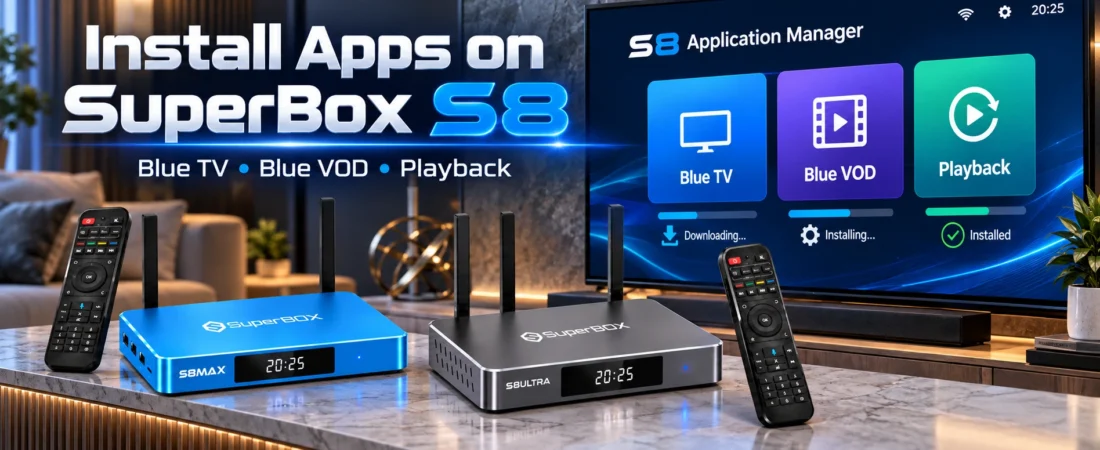
Quick Start: Installing Blue TV on SuperBox S8
If your SuperBox is already connected to the internet, follow these steps:- Turn on your SuperBox S8 and open the home screen.
- Select Apps.
- Open the built-in APP Store, not the Google Play Store.
- Read and acknowledge any disclaimer displayed by the store.
- Find Blue TV in the available app catalog.
- Highlight Blue TV and press OK to begin downloading.
- Wait for the installation progress to finish.
- Confirm that the app displays an installed indicator, such as a green check mark.
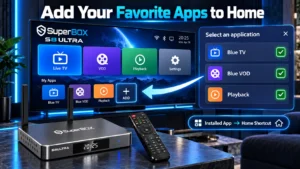
- Return to the home screen and choose + / ADD.
- Select Blue TV to place it in your home-screen shortcut row.
Important: Installing an app and adding its shortcut to the home screen are separate actions on the SuperBox S8 interface. An app can be installed correctly even when its icon is not visible on the main screen.
Understanding the SuperBox S8 App System
Before installing anything, it helps to understand how applications are organized on the SuperBox S8. Unlike a traditional television interface where every function appears directly on the main screen, the SuperBox S8 organizes applications into different areas.1. Apps
The Apps area is where you can access the device’s application hub and installed software. It is also a convenient starting point when looking for the internal APP Store.2. APP Store
The built-in APP Store displays applications available through the SuperBox device environment. Depending on the software version, the available catalog may include Blue TV, Blue VOD, Playback, Backup TV, recording tools, and system utilities.3. Google Play Store
Google Play Store is a separate application marketplace used for compatible Android apps. It should not be confused with the SuperBox internal APP Store when following this installation guide.4. + / ADD
The + / ADD option is used to choose which installed applications should appear as shortcuts on the SuperBox S8 home screen. This does not normally download an application. Instead, it helps you organize quick access to software that is already installed.What Are Blue TV, Blue VOD, Playback, and Backup TV?
These applications have different purposes. Understanding what each one does makes it easier to decide which apps to install first.| Application | Main Function |
|---|---|
| Blue TV | Live television browsing, including available sports, news, movies, entertainment and other channel categories. |
| Blue VOD | On-demand movies, television series, seasons and episodes. |
| Playback | Access to supported earlier television programming and Time Shift functions. |
| Backup TV | An alternative television application when available in the supported catalog. |
| Video Recording | Recording-related functions for compatible content and software. |
| TV ROM Updater | A system-update utility provided by the device software. |
Before Installing Apps: Check Your SuperBox S8
Before opening the APP Store, make sure the basic system is working properly. Confirm Your Internet Connection: Connect the S8 through WiFi 6 or Gigabit Ethernet. If your router is close to the television, Ethernet can be a useful option because it removes wireless signal strength from the connection between the box and router. If you use WiFi, confirm that the network status shows a successful connection before beginning any download.Keep the Device Powered On
Do not disconnect the SuperBox while an application is actively downloading or installing.Check Available Storage
The SuperBox S8 models have different storage configurations:- SuperBox S8 Pro: 32GB storage
- SuperBox S8 Plus: 64GB storage
- SuperBox S8 Max: 64GB storage
- SuperBox S8 Ultra: 128GB storage
Step-by-Step: How to Install Blue TV on SuperBox S8
Step 1: Open the Apps Area
Turn on your SuperBox S8 and wait for the main interface to load. Using the supplied remote, move to the Apps section and press OK. The Apps area provides access to installed applications and available application-management options.Step 2: Choose the Built-in APP Store
Look for the APP Store icon in the application hub. In the demonstrated S8 interface, this store uses a blue shopping-bag-style icon. Do not select Google Play Store for the device-specific installation process described here. If a disclaimer appears, read it carefully and continue when the interface allows you to proceed.Step 3: Locate Blue TV
Inside the APP Store, browse the available application grid. Look for the Blue TV application card. If the catalog offers a search function, you can use it to locate the app more quickly. Use the directional pad to highlight the correct application.Step 4: Start the Download
Press OK to begin downloading Blue TV. Depending on the current interface, you may see a download arrow, percentage indicator, transfer speed, or other progress information. Let the installation finish before repeatedly pressing additional buttons.Step 5: Confirm Installation
When the download and installation are complete, the application card should change to an installed state. Some SuperBox S8 versions display a green check mark to indicate successful installation. Do not confuse an active download percentage with the completed installation indicator.Step 6: Open Blue TV
After installation, return to the installed-app area and locate Blue TV. Open the application and allow it to initialize. If you want Blue TV to appear directly on the home screen, follow the shortcut setup instructions later in this guide.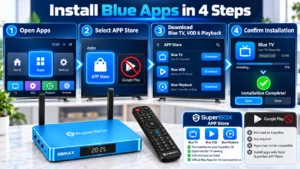
How to Install Blue VOD on SuperBox S8
Blue VOD is a separate application from Blue TV, so installing one does not automatically mean the other is installed. To install Blue VOD:- Open the built-in APP Store.
- Find Blue VOD in the catalog.
- Select its application card.
- Press OK to download.
- Wait for the installation to complete.
- Confirm that the installed indicator appears.
- Return to Apps and launch Blue VOD.
How to Install the Playback App
The Playback application provides access to supported previous television programming and related Time Shift functions. It can be useful for viewers who cannot always watch a program at its scheduled broadcast time. To install it, follow the same general process:- Open the SuperBox internal APP Store.
- Find Playback.
- Highlight the application.
- Press OK to begin the installation.
- Wait for the completion indicator.
- Open the installed application.
How to Install Backup TV and Recording Tools
Some SuperBox S8 application catalogs also provide Backup TV and recording-related tools. When these applications are available for your device, you can install them from the same internal APP Store. Backup TV serves as an alternative supported television application, while recording tools are intended for supported recording functions. Recording availability may depend on the selected application and content. Saved files also use storage, so owners who record frequently should monitor their available capacity. You do not need to install every app in the catalog. Begin with the applications you actually intend to use.How to Add Blue TV, Blue VOD and Playback to the Home Screen
This is the step that many new SuperBox S8 owners overlook. After installing your applications, you may return to the home screen and discover that Blue TV or Blue VOD is not visible in the shortcut row. That does not necessarily mean installation failed.Step 1: Return to the SuperBox S8 Home Screen
Press Home on the remote or return from the application store to the main interface.Step 2: Find the + / ADD Tile
Locate the tile showing a plus symbol and the label ADD. Press OK to open the application-selection window.Step 3: Choose the Applications You Want
A selection panel may appear under a heading such as Select an application. Use the directional pad to highlight Blue TV, Blue VOD, Playback, or another installed app. Press OK to select it.Step 4: Confirm the Selection
In the demonstrated interface, a check mark appears when an app has been selected for the home-screen shortcut row. Repeat the process for the other applications you want to display.Step 5: Return to the Main Interface
Close the application selector and check the home screen. Your chosen application shortcuts should now appear in the designated row.Useful Tip: If Blue TV is installed but missing from Home, check the + / ADD menu before reinstalling the application. Removing a shortcut does not necessarily uninstall the underlying app.
Installation vs Home Screen Shortcut: What’s the Difference?
| Action | Where It Happens | Result |
|---|---|---|
| Install | Internal APP Store | Downloads and installs the application. |
| Add Shortcut | Home → + / ADD | Adds an installed app to the shortcut row. |
| Remove Shortcut | Home app selector, if supported | Removes the shortcut without necessarily uninstalling the app. |
| Uninstall | Supported application-management settings | Removes the application from the device. |
What If Blue TV or Blue VOD Is Missing?
A missing app icon can mean several different things. Before installing anything again, check the exact situation.Problem 1: The App Is Installed but Not on Home
Open the + / ADD application selector and look for the app. If it appears there, select it and confirm that its shortcut is enabled.Problem 2: The APP Store Shows a Download Arrow
The application may not have completed installation. Select the app and allow the download to finish. Look for its installed indicator afterward.Problem 3: The Download Stops at a Percentage
Check your internet connection first. If possible, test another app or network function to confirm that the SuperBox is still online. Reopen the internal APP Store and retry using the available on-screen controls.Problem 4: Blue VOD Opens but Does Not Load Content
Installing an app does not guarantee that every content source is currently available. Test the network connection and another application before assuming the installation itself failed.Problem 5: The APP Store Is Missing
If the SuperBox internal APP Store is not visible, check the Apps area and the installed application list. Do not replace it with an unknown APK or a similarly named website found through a search engine. Contact the retailer’s support team for the appropriate device-specific instructions.Problem 6: Apps Disappeared After a Factory Reset
After resetting the device, some apps or home-screen shortcuts may need to be installed or configured again. Complete the initial network setup, locate the internal APP Store, and check which applications are available. After installation, use + / ADD to rebuild your preferred home-screen layout.How to Organize Your SuperBox S8 Home Screen
Once your applications are installed, organize the shortcut row around your actual viewing habits. For example, a household might prefer:- Blue TV for live television
- Blue VOD for movies and TV series
- Playback for supported earlier programs
- Video Recording for compatible recording functions
- Settings or other regularly used utilities
Does App Installation Work the Same on Every SuperBox S8 Model?
The general installation procedure is similar across the SuperBox S8 Pro, Plus, Max, and Ultra, because all four use the current S8 software generation. However, the device specifications and certain advanced entertainment capabilities are not identical. The SuperBox S8 Pro includes 32GB storage, the S8 Plus and S8 Max include 64GB, and the S8 Ultra provides 128GB. All four models support the core entertainment application environment, but differences in storage, remote features, and Multi-Viewing capabilities may affect the overall experience. For example, the S8 Max offers broader Multi-Viewing support than the S8 Plus. Our SuperBox S8 Max vs S8 Plus comparison explains those differences. If larger storage capacity is important, our SuperBox S8 Ultra vs S8 Max guide covers the differences between the 64GB and 128GB models.Tips for Keeping SuperBox S8 Apps Running Smoothly
Use a Stable Network
App downloads and content playback depend on an active internet connection. If WiFi is unreliable, test a wired Ethernet connection when possible.Avoid Unknown App Sources
Use the supported device-specific installer for SuperBox applications and trusted sources for compatible third-party Android software.Keep Your Application List Manageable
Installing only the software you actually need makes the home screen easier to navigate and reduces unnecessary storage use.Use Supported Update Tools
If a legitimate device update is offered through the built-in system or supported update utility, follow the displayed instructions. Avoid installing unknown firmware files or interrupting the power supply during an update.Keep Your Order Details
If you encounter a recurring installation or device issue, having your exact model, order number, and a photo of the error screen can make technical support easier. For store-specific assistance, see our SuperBox S8 Warranty & Support Policy.Frequently Asked Questions
How do I install Blue TV on SuperBox S8?
Open Apps, select the internal APP Store, find Blue TV, and press OK to download it. After installation, use the + / ADD tile to place Blue TV on the home screen if needed.How do I download Blue VOD on SuperBox S8?
Open the built-in APP Store, select Blue VOD, and complete its installation. Blue VOD is a separate application from Blue TV.Where can I find the Playback app?
Playback may be available in the SuperBox internal APP Store. Locate its app card, install it, and add a home-screen shortcut if desired.Why is Blue TV installed but not appearing on Home?
The application may be installed without being selected for the shortcut row. Open + / ADD on the home screen, locate Blue TV, and enable its shortcut.Is the SuperBox APP Store the same as Google Play Store?
No. The internal APP Store displays device-specific applications, while Google Play Store is a separate marketplace for compatible Android applications.What does the green check mark mean?
In the demonstrated SuperBox S8 APP Store interface, a green check mark indicates that an application has finished installing.Can I install Blue TV, Blue VOD, and Playback on S8 Ultra?
The current S8 lineup lists these applications across the S8 models, including S8 Ultra. Exact catalog availability can depend on the device software and service conditions.Will reinstalling Blue TV restore missing channels?
Not necessarily. Channel and content availability can depend on the app, service, region, and current source conditions. Reinstalling an app does not guarantee that unavailable content will return.Can I remove a shortcut without uninstalling the app?
Where supported by the SuperBox S8 launcher, removing an app from the home-screen shortcut selection does not necessarily delete the installed application.What if the internal APP Store is missing?
Check the Apps area and installed application list first. If the internal installer is unavailable, contact your SuperBox retailer for device-specific guidance instead of using an unknown external download.Final Thoughts
Installing Blue TV, Blue VOD, and Playback on a SuperBox S8 is easier once you understand how the redesigned application system works. Start by opening the internal APP Store and installing the available apps you want. Confirm that each download finishes before returning to the main interface. Then use the + / ADD option to create shortcuts for your favorite applications. If an app seems to be missing, check whether it is already installed before downloading it again. In many cases, the missing piece is simply the home-screen shortcut. Whether you use the SuperBox S8 Pro, S8 Plus, S8 Max, or S8 Ultra, learning this two-part process helps you build a cleaner, easier-to-use home entertainment setup. Explore the latest SuperBox S8 models on our SuperBox official website or browse the available TV boxes to find the model that best fits your needs.Ready to Explore the SuperBox S8 Collection?
Compare the current models and find the right fit for your home entertainment setup.
Enter coupon code SP8 at checkout to enjoy 8% OFF.
Shop SuperBox S8 TV Boxes