

Can you use a SuperBox S8 on an older TV? Often, yes—provided the television has a working HDMI input and can display the signal the box sends. The useful question is not whether your TV is “smart,” but whether its connection and resolution suit the setup. If you are considering a SuperBox TV box for an older television, a five-minute look at the back of your screen can save you a frustrating purchase or an unnecessary TV upgrade.
A working HDMI port lets you keep a familiar screen while adding the newer interface and entertainment choices of an external SuperBox TV box. The current SuperBox S8 lineup includes models with different storage and remote options; the TV’s own app store does not need to be up to date. First confirm the connection, then choose the SuperBox model that fits how your household watches.
SuperBox S8 on an older TV: look for HDMI first
The SuperBox S8 Max and SuperBox S8 Ultra connect to a television by HDMI. A functioning HDMI port is the basic requirement for a straightforward connection. Your TV does not need its own app store or built-in Wi-Fi; the streaming box handles the internet connection and sends a picture to the display. That makes an older HDTV with HDMI a plausible match, even if its original “smart” software is slow or no longer updated.
That is not a promise that every older display, HDMI switch, sound system, or streaming service will behave identically. The TV’s supported resolutions, the particular HDMI connection, and any copyright-protection requirements imposed by an app can affect the result. If the age or model of your TV makes this uncertain, check its manual or ask the seller before ordering. New to the device itself? Our what is superbox explainer covers the basic TV-and-internet relationship.
Three things to inspect before you order
1. Find a real HDMI input
Look on the back or side of the TV for a port labeled HDMI, HDMI 1, HDMI 2, or a similar name. It is a narrow, flat socket—not the round yellow, red, and white RCA jacks. If you cannot see the rear panel, your television’s model number and manual may show its inputs. A photograph of the input area is useful if you later ask support for help.
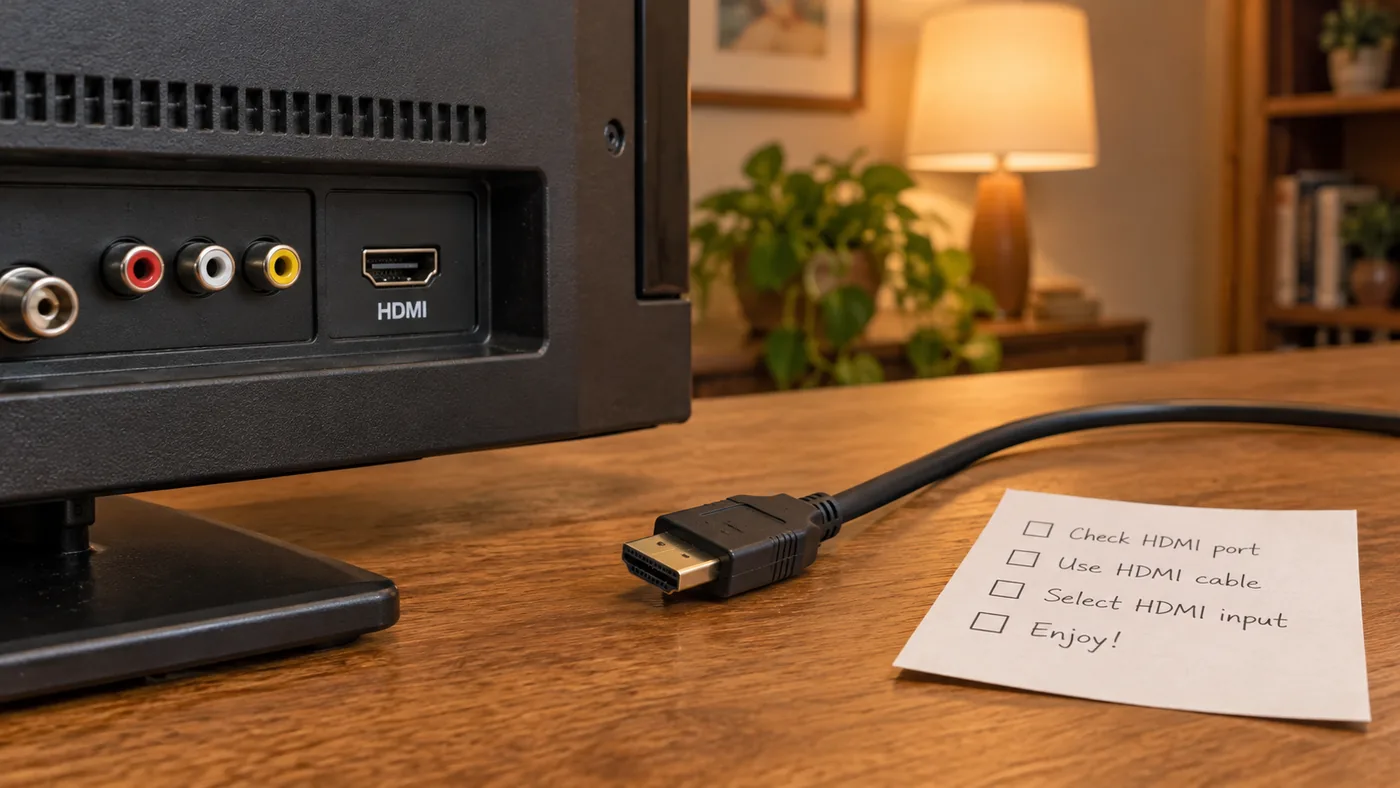
Do not confuse a TV’s USB port with HDMI. USB on an older television may power accessories or play local files, but it is not normally the video input for this setup. If you have no HDMI port at all, stop here and assess the cost and limitations of an active HDMI-to-analog converter before buying. Such converters are not supplied with the box, may reduce picture quality, and may not work with protected content. A television with native HDMI is the simpler and more predictable choice.
2. Check the picture your TV can actually show
A box that supports modern video processing cannot turn a 720p or 1080p panel into a 4K screen. On an older HDTV, expect the picture to be limited by that TV’s resolution and by the source content. The SuperBox S8 Max product listing describes 4K playback and H.265 decoding; its 6K decoding specification is a processing capability, not a guarantee that an old TV will show a 6K picture. If 4K is important to you, confirm that the TV, HDMI path, source, and service all support it.
For a concrete starting point, the SuperBox S8 Max listing shows HDMI output, an included HDMI cable, Wi-Fi 6, and wired Ethernet. It also lists the model’s memory and storage. These features are useful when choosing a box, but none replaces the first compatibility check: a working HDMI input on your TV.
3. Plan for power and internet separately
The TV’s HDMI socket carries the video connection; the box still needs its own power and network connection. Use the supplied power equipment for the exact model and place it where its cable can reach an outlet safely. For internet, choose your home Wi-Fi or a wired Ethernet connection if your router is nearby. The television itself does not need to be on Wi-Fi for the external box to stream.
If this is your first streaming device, our first-time SuperBox installation guide explains the overall connection sequence. Its screenshots or menu labels may differ on a SuperBox S8 model, so use the on-screen prompts and the exact model’s guide for model-specific steps.
What setup actually looks like on an older TV
Once you have checked the ports, the physical part is short: connect the included HDMI cable between the SuperBox S8 model and the TV, connect the box to power, and turn on the television. Then use the TV’s remote or input button to select the HDMI number you used. HDMI 1 and HDMI 2 are different inputs; a powered box on HDMI 2 can still look like “no signal” while the TV is showing HDMI 1.
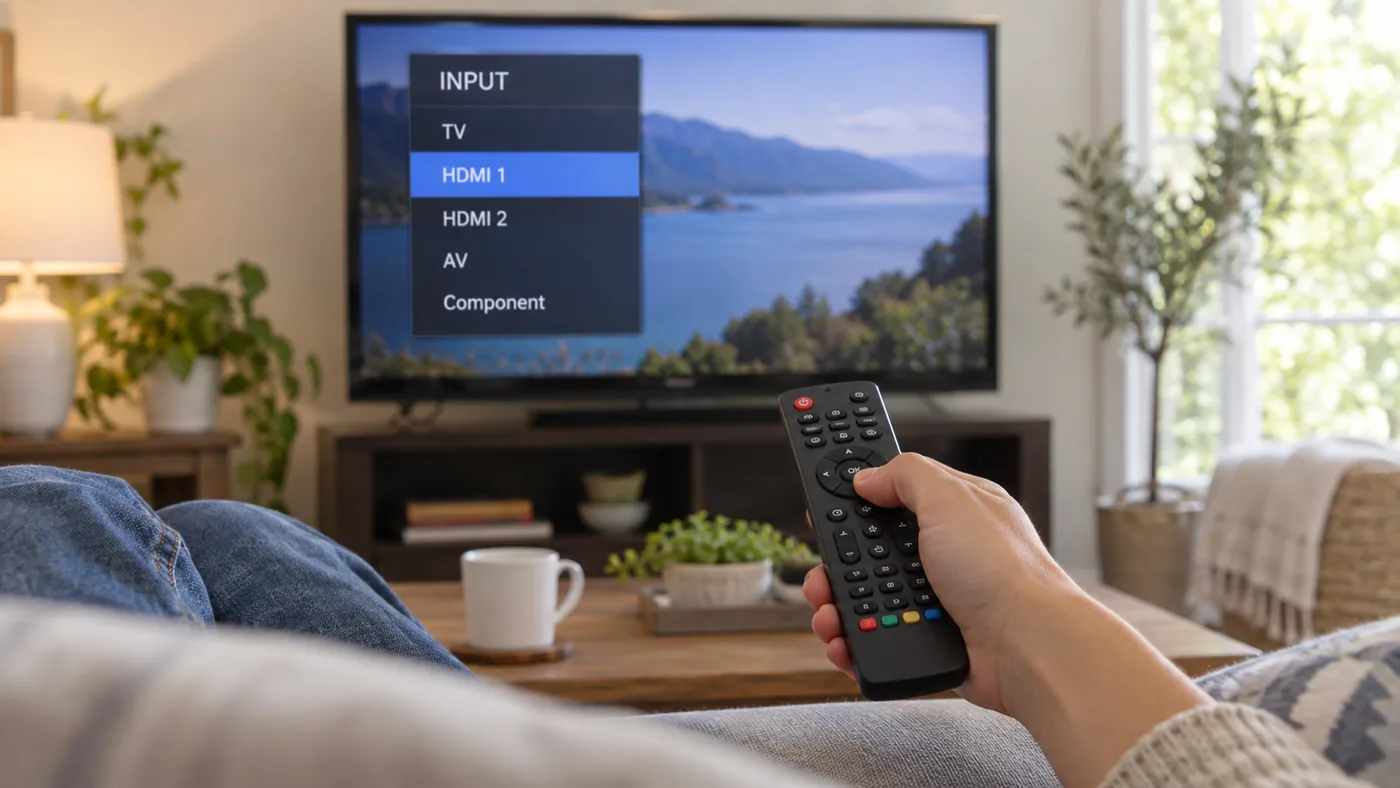
If the home screen appears, continue with the network and on-screen setup. Avoid changing advanced display settings simply because the TV is old. Start with the default or automatically detected settings and test ordinary playback first. If you are unpacking a new unit, the SuperBox S8 Max unboxing guide provides a model-specific inventory and a first-watch sequence.
For the SuperBox S8 Ultra, the included HDMI cable, separate power connection, and backlit remote are described in the SuperBox S8 Ultra unboxing walkthrough. The backlight can be convenient in a dim room, but it does not change the HDMI requirements of the TV.
What a SuperBox adds to an older TV
An older HDTV can remain useful even when its built-in apps feel slow or have stopped receiving updates. The SuperBox S8 Max supplies a separate Android-based interface, Wi-Fi 6, wired Ethernet and a voice remote; the TV simply displays the picture through HDMI. That is a more practical reason to add a SuperBox than expecting the box to change the television’s native resolution.
Current SuperBox S8 model information lists Blue TV and Blue VOD for the SuperBox S8 Max and SuperBox S8 Ultra. Blue TV is built around supported live channels, including news, sports and family programming; Blue VOD is for browsing supported movies and television series on demand. That mix gives a household more to explore on one screen than an aging TV interface alone. Content, app versions and rights can vary by region, so check any must-have channel or title before buying.
Under the store’s current offering, the SuperBox device itself has no mandatory monthly device subscription. You still need home internet, and unrelated third-party apps may require their own paid plans. For many buyers, that distinction makes the SuperBox S8 Max easier to budget for than a setup built around several recurring app bills—but the value depends on what your family actually watches.
If the screen says “No Signal”
“No Signal” is a TV-input message, not a diagnosis of the internet connection. First confirm that the box has power, that both HDMI cable ends are seated, and that the television is on the matching HDMI input. If your TV has another HDMI socket, test it. If you use an HDMI switch or AV receiver, a direct connection to the TV is a useful isolation test. Do not factory-reset the box as a first response to a missing picture.
If you have a picture but playback pauses, that is a different problem. Test the network and the source app rather than changing the TV input repeatedly. Our SuperBox buffering and not-working checks help distinguish a display problem from a connection or app problem. Keep the two diagnoses separate: HDMI determines whether you see a picture, while the network affects streamed content.
A remote that seems unresponsive can also make a good connection appear broken. Confirm that you are using the right remote for the task: the TV remote usually selects the TV’s input, while the SuperBox remote controls the box once its interface is on screen. If the box remote itself is the issue, use the SuperBox S8 remote pairing guide for model-relevant checks.
Older TV, new box: which model makes sense?
The SuperBox S8 Max is a strong starting point for an older HDMI television: its listed 64GB storage, voice remote and Wi-Fi or Ethernet options cover many everyday living-room needs, while Blue TV and Blue VOD broaden the viewing menu. If your family values extra storage and a remote that is easier to see in a dim room, the SuperBox S8 Ultra lists 128GB storage and a backlit remote. Both connect by HDMI; neither can raise the resolution of the television panel itself.
For a household buying its first device, the SuperBox S8 Max first-time buyer guide expands on what to confirm before checkout. If extra storage or the remote matters more than price, the SuperBox S8 Ultra versus SuperBox S8 Max comparison goes deeper into the model decision. Neither article changes the basic HDMI test for an older TV.
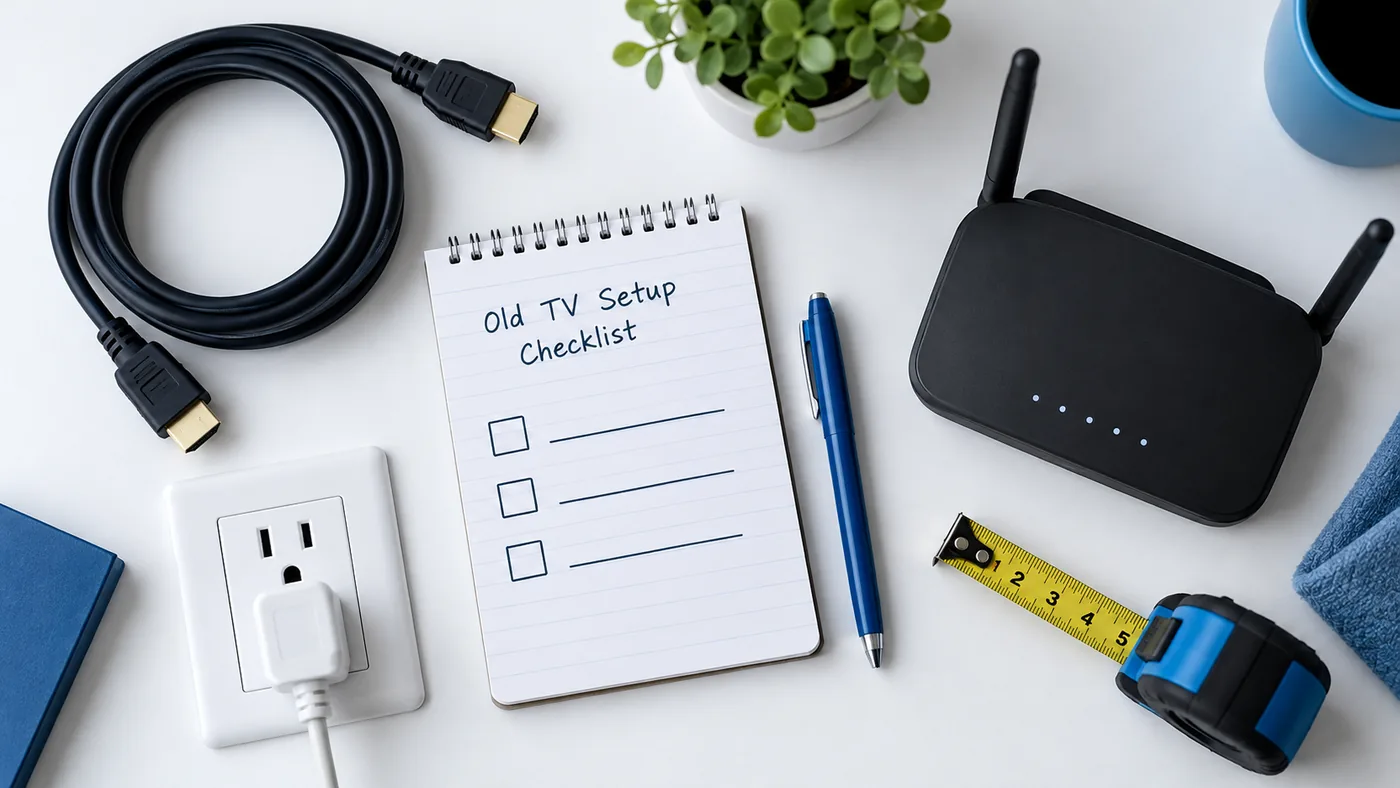
A realistic pre-purchase checklist
- Find at least one working HDMI input on the television.
- Note the TV’s model number and maximum supported resolution.
- Make sure a safe power outlet is available for the box’s supplied adapter.
- Decide whether Wi-Fi or Ethernet is practical in that room.
- If the TV has no HDMI, investigate converter limitations before ordering.
- Keep expectations realistic: a 4K-capable box does not upgrade the TV panel.
These checks are deliberately modest. They do not require you to know HDMI version numbers or change hidden service menus. They simply identify the few conditions that determine whether the first setup will be straightforward.
Bottom line
If your older television has a reliable HDMI input, a SuperBox S8 Max can give that screen a more useful second life: modern box controls, supported live and on-demand browsing, and no mandatory monthly device subscription under the current store offering. Check the HDMI connection and the content your household actually wants before ordering. A TV with no HDMI, an unreliable port or an incompatible intermediate device may need a different plan. Review the SuperBox options for your living room after that quick inspection.
Related guide: Explore the SuperBox S8 buying guide