

Buying a SuperBox S8 for parents or grandparents can be a thoughtful gift, but the box itself is only half the gift. The other half is leaving them with a setup they feel comfortable using when you are not in the room. Before you order a SuperBox TV box for their living room, think about their television, internet connection, remote-control habits, and the apps they actually want.
This guide is for someone buying and preparing a SuperBox S8 for another person. It is not a repeat of a general unboxing tutorial. We will focus on the decisions that make everyday use easier: choosing a sensible model, making the first setup calm, and leaving behind a short plan for help. If you are still weighing the models, start by looking at the current SuperBox S8 choices and then work through the checklist below.
Start with their living room, not a specifications sheet
First, check the television. The SuperBox S8 connects to a compatible display through HDMI, so there must be an available HDMI input. Your parents do not need to replace a working television simply because it lacks the newest smart-TV software. They do need to be able to switch the TV to the correct HDMI input when they want to use the box. If that last step is unfamiliar, plan to demonstrate it more than once.
Next, check the internet where the TV sits. The SuperBox S8 Max and SuperBox S8 Ultra product listings both show dual-band WiFi 6 and Gigabit Ethernet. That gives you a choice of wireless or wired networking, but it does not guarantee good streaming in a room with weak broadband or heavy WiFi interference. If the router is close enough for a neat cable run, Ethernet may remove one point of uncertainty. If not, test the actual WiFi connection in that room before gift day.
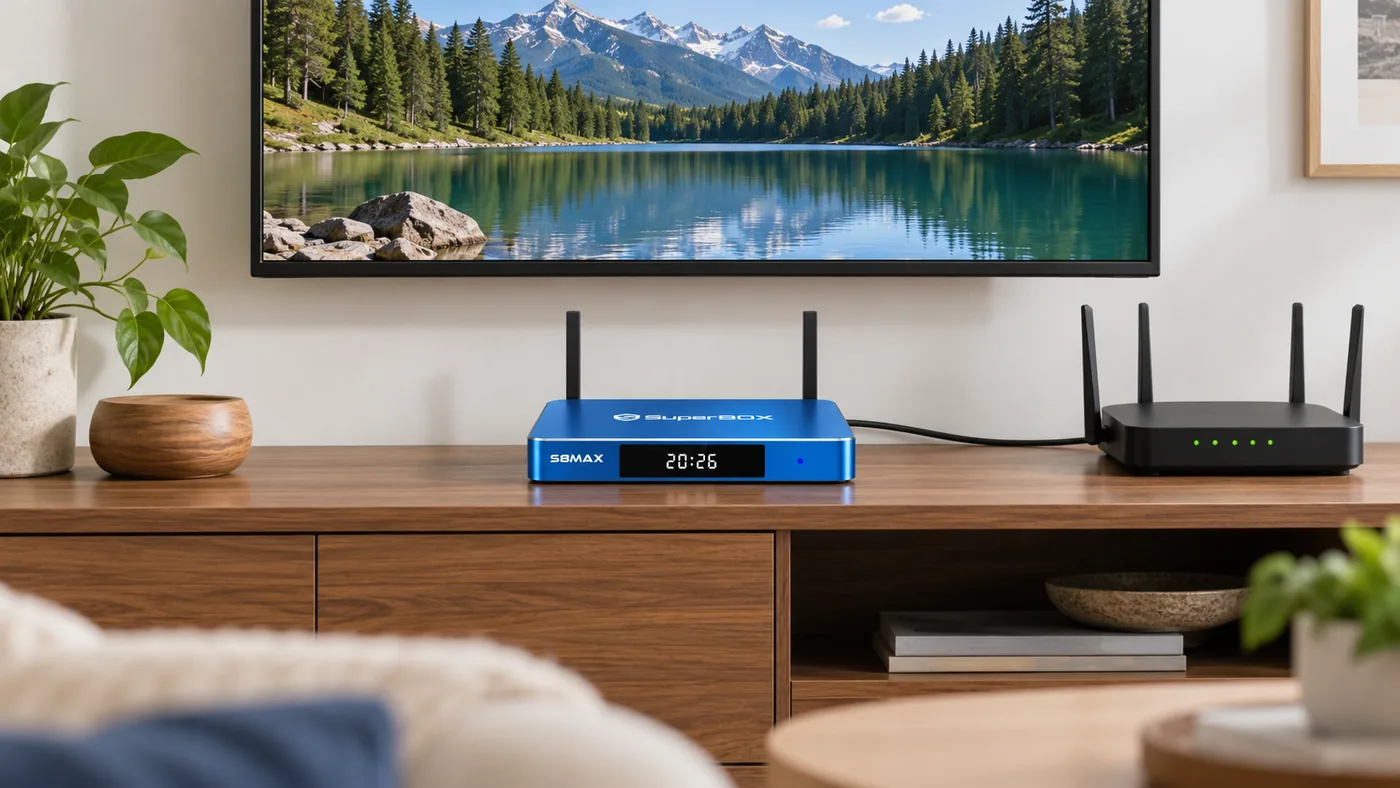
Finally, ask what they want to watch and which services they already pay for. A SuperBox is a separate media device, not a promise that every third-party app or program will be available without an account. If the distinction is new to your family, the site’s what is superbox explainer gives a useful foundation before you make a buying decision.
Which SuperBox S8 model makes sense for a parent?
For this use case, the two practical questions are usually remote comfort and storage—not which model has the longest feature list. The SuperBox S8 Max is listed with 4GB memory, 64GB storage, WiFi 6, Ethernet, and a voice remote. It can be a reasonable fit when the household wants the current SuperBox S8 experience without paying for the largest storage option.
The SuperBox S8 Ultra is listed with 4GB memory, 128GB storage, and a backlit voice remote. The backlit buttons may be useful if your parent watches TV in a dim room. The additional storage matters most when they plan to keep more compatible apps or local files. Neither feature is automatically worth paying for if it will never be used.
Ask the person who will use the remote. Do they often watch in the evening? Do they find a large collection of buttons tiring, or do they prefer familiar numbered keys? Can they comfortably read the TV from their usual seat? The existing SuperBox S8 Ultra versus SuperBox S8 Max comparison lays out the model differences, but the answer should still come from the household’s habits.
If you are buying for someone who has never used an Android-based TV device, it can help to read a broader account of the day-to-day experience. The site’s superbox reviews discusses navigation, apps, connectivity, and ordinary use rather than treating a storage number as the whole story.
Set up the gift before you call it finished
Ideally, do the initial setup in your parent’s home. A device that worked on your own television has not yet been tested on theirs. Put the box where it has room around it and where its cable connections remain accessible. Connect HDMI to an available TV input, use the power equipment supplied for that exact model, and write down the HDMI input number. Power connectors can differ across SuperBox S8 models, so do not assume an adapter from another box is interchangeable.
If you chose the SuperBox S8 Ultra, use the SuperBox S8 Ultra unboxing and setup guide to check the included items and model-specific connection process. Keep the carton and paperwork together until you have confirmed that the picture, sound, remote, and internet all work.
For the SuperBox S8 Max, follow the corresponding SuperBox S8 Max first-watch guide. A useful handover test is simple: turn the TV off, let your parent turn it back on, choose the correct HDMI input, and open one app they expect to use. Observe where they hesitate. That tells you more than a successful setup performed entirely by someone else.
Teach three remote actions, then stop
It is tempting to demonstrate every menu and feature in a single sitting. Most people will remember more if you begin with just three actions: get back to the home screen, move to the app they use most, and adjust or mute the sound. Let your parent hold the remote and do each action themselves. Then switch the TV off and repeat the short routine once.
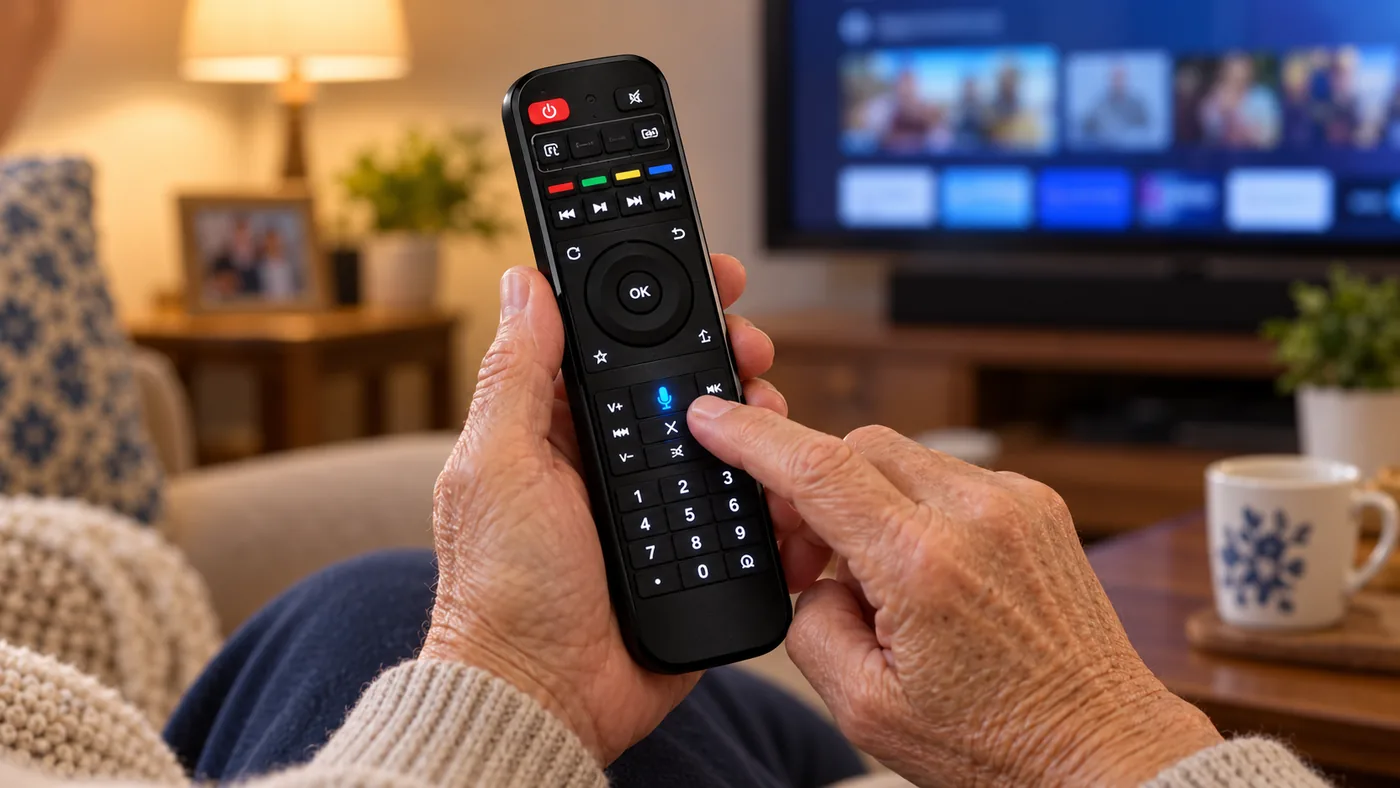
Both the SuperBox S8 Max and SuperBox S8 Ultra are sold with voice-capable remotes, while the SuperBox S8 Ultra listing specifically identifies a backlit design. Voice functions may depend on proper pairing and the current software. If voice control or wireless navigation does not respond as expected, use the site’s SuperBox S8 remote pairing guide for model-specific checks rather than guessing at button combinations.
Write a small card they can keep by the TV: “Turn on the TV → select HDMI [number] → use the SuperBox remote.” Add your phone number or the retailer’s support contact. A handwritten three-line reminder is often more useful than a long printed manual.
Make the first app experience familiar
Choose one or two apps your parent actually wants, not every app available in the menu. Open each app together. If an app requires an account, subscription, or authorization, confirm that before you leave. Avoid installing software from unfamiliar download sites just because a setup video promises more content. App availability and content rights can vary by provider and region.
If on-demand viewing is important to them and the supported app is available on their device, the site has a separate Blue VOD navigation guide. You can use it to explain search, favorites, subtitles, and playback at their own pace. Do not make the first lesson a test of how many titles or channels they can find. Aim for one comfortable route from the home screen to something they can watch.
Before leaving, check text size from their normal seat. If the TV itself is zooming the picture or cutting off the edges, adjust the television’s picture-size settings or the device’s supported display settings carefully. Do not change several display controls at once; one measured adjustment is easier to undo than a collection of unexplained changes.
Leave a calm troubleshooting plan
A good gift also comes with a plan for the first “it isn’t working” call. Ask your parent to describe what the TV actually shows: a blank screen, “No Signal,” a home screen with no internet, or one app that will not load. Those are different problems. For “No Signal,” check that the TV is on the HDMI input you wrote down and that the box is powered. For an internet problem, see whether other household devices are online before changing the SuperBox’s settings.
Do not lead with a factory reset. It can erase local settings and make a simple connection problem harder to solve. Keep the order number, exact model name, and packaging in one place so that support can identify the right device. The site’s SuperBox S8 warranty and support guide explains what buyers should retain and how to prepare a useful support request.
Most importantly, agree on who will help if the first phone call does not solve the problem. Your parent should not have to search the web for a random firmware file or an unofficial APK under pressure. The store’s SuperBox support center is the right place to start for order and device assistance.
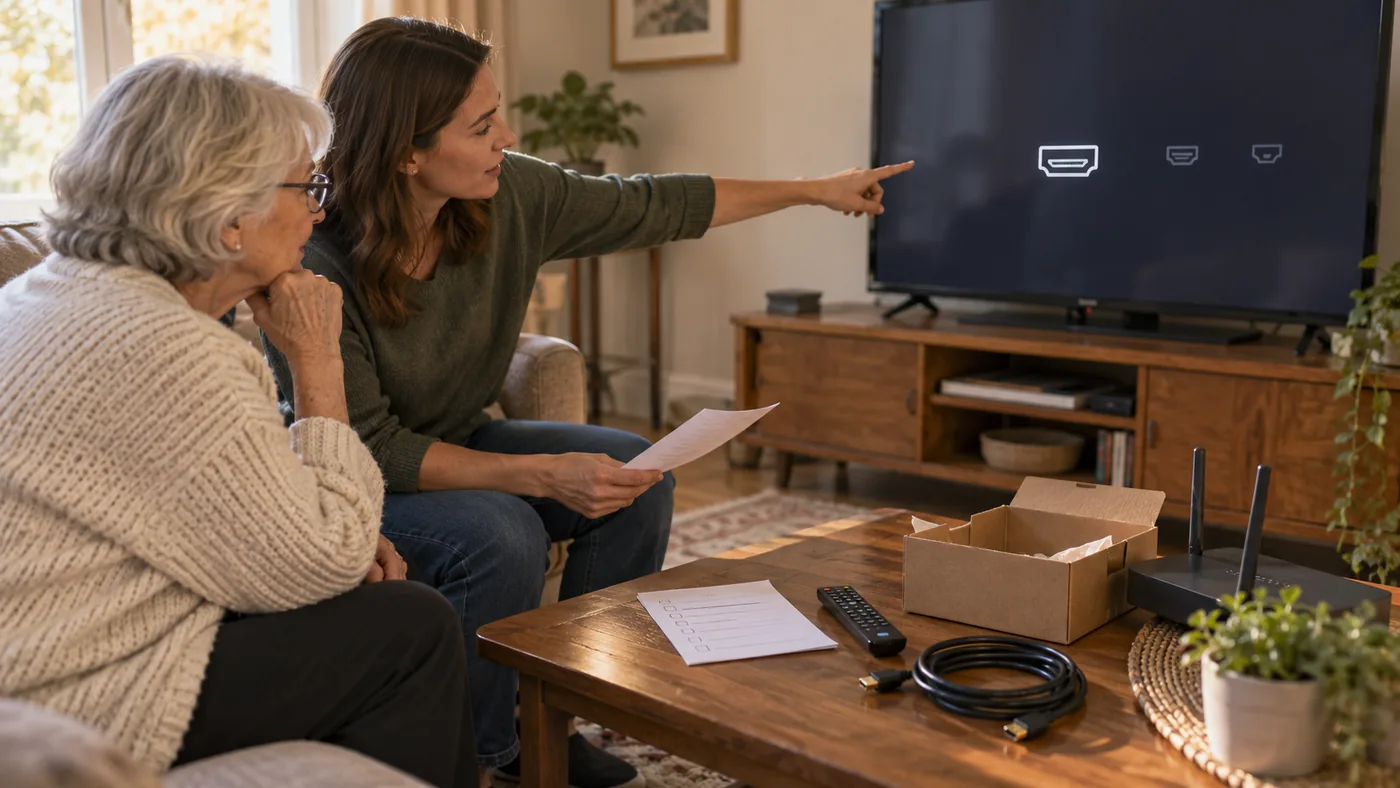
A five-minute handover checklist
- The TV switches to the correct HDMI input without your help.
- The picture and sound work from the usual viewing seat.
- The SuperBox remote performs the few actions your parent will use every day.
- The chosen WiFi or Ethernet connection is working in that room.
- One or two chosen apps open as expected, with any required accounts ready.
- A simple note records the HDMI input, model name, and support contact.
Frequently asked questions
Does my parent need a smart TV?
Not necessarily. The important starting point is a compatible TV or display with an available HDMI input. The SuperBox supplies its own interface, while the TV displays the resulting picture and sound. Confirm the connection and the TV’s supported resolution before ordering.
Should I choose WiFi or Ethernet?
Choose the connection that is reliable in their actual room. Ethernet is worth considering when the router is nearby and a tidy cable run is possible. WiFi is convenient when a cable would be awkward. Test the chosen connection with the apps they intend to use rather than relying on a specification alone.
Is the backlit remote essential?
No. It is a convenience feature on the SuperBox S8 Ultra, not a requirement for using a SuperBox S8. It may be helpful for a person who regularly watches in low light. A parent who prefers a simpler purchase and does not need the extra storage may be just as happy with the SuperBox S8 Max.
Choose the setup they can enjoy independently
The best SuperBox S8 gift is not the one with the most impressive specification in isolation. It is the one your parent can turn on, navigate, and ask for help with confidently. Check the television and network first, choose between the SuperBox S8 Max and SuperBox S8 Ultra based on real habits, and spend a little time practicing together. You can return to the SuperBox S8 lineup for U.S. buyers when you are ready to make that choice.